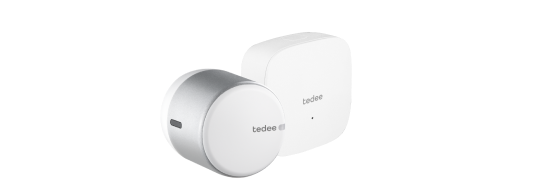








Tedee GO(2): Matter
User guide and integration manual
Before you start
Matter integration of Tedee GO and Tedee GO2 requires a Thread Border Router device compatible with your desired smart home platform.

 |  |
| Apple TV 4K (3rd generation) Wi-Fi + Ethernet / Apple TV 4K (2nd generation) / HomePod (2nd generation) / HomePod mini | Echo (4th Gen) / Echo Hub / Echo Show 21 / Echo Show 15 ( 2nd Gen) / Echo Show 10 (3rd Gen) / Echo Show 8 (3rd Gen) / Echo Plus (2nd Gen) / Echo Studio (1st and 2nd Gen) / eero 6 and eero 6+ / eero 7 / eero Beacon / eero Max 7 / eero Outdoor 7 / eero PoE 6 / eero PoE gateway / eero Pro / eero Pro 6E and eero Pro 6 / eero Pro 7 |
 |  |
| Nest Hub (2nd gen) / Nest Hub Max / Nest Wi-Fi Pro (Wi-Fi 6E) / Google TV Streamer (4K) | Aeotec Smart Home Hub / Samsung SmartThings Station / SmartThings Hub V3 / Select Samsung TVs, projectors, monitors, soundbars / Family Hub fridges and 9-inch LCD fridges / Selected washer/dryer combos / Learn more here >> |
The list of compatible devices may change or expand. Consult the information supplied by your smart home platform provider for the most up-to-date range of accessories.
Browse certified Thread Border Router devices here >>
If you do not have a Thread Border Router at your property, you may integrate your smart lock using cloud-based integrations via the Tedee Bridge (non-Matter).
Learn more about compatible cloud-based integrations:
Do you need the Tedee app?
A Matter platform allows you to use a smart home device with a Matter-based smart home app (such as the iOS Home app, Google Home, Samsung SmartThings, or Amazon Alexa).
However, in some cases the Tedee app is required to initiate Matter compatibility or pair your smart lock with Tedee accessories.
Check the table below to determine how you should proceed with the Matter integration.
Do you want to use your smart lock with accessories?
Tedee Bridge / Tedee Keypad PRO / Tedee Door Sensor
| YES | NO | ||
|
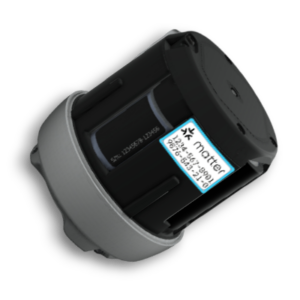
You must use the Tedee app alongside your Matter-based smart home app for the entire time you use the smart lock. Configure your smart lock and accessories in the Tedee app before integrating the smart lock with Matter using either the Tedee app >> or Matter Setup Code >> | Does your smart lock have a sticker with a Matter Setup Code on the battery compartment? | ||
YES
 | NO
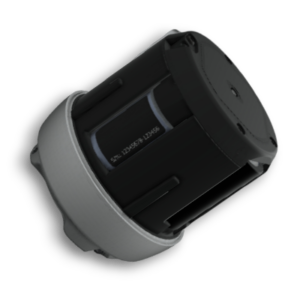 | ||
| You can integrate your smart lock directly using your Matter-based smart home app >> You don’t need to use the Tedee app, but it provides additional benefits. | You need to generate a Matter Setup Code in the Tedee app >> Afterwards, you may delete your Tedee account and uninstall the app, although keeping them provides additional benefits. | ||
Integration
Remove the smart lock’s body cover and check the battery compartment.
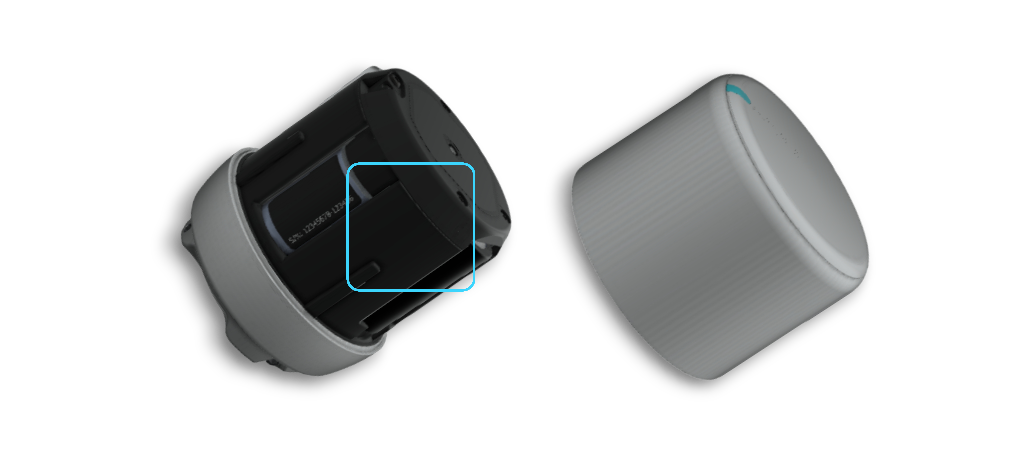
If your smart lock is:
| Tedee GO2 with a Matter Setup Code sticker on the battery compartment | Tedee GO or Tedee GO2 without a Matter Setup Code sticker on the battery compartment |
This option is available only if the lock is not paired with a Tedee account. This integration method does not allow for pairing with Tedee Bridge / Tedee Keypad PRO / Tedee Door Sensor. OR | Update your smart lock’s firmware to version 2.1.3493 or later using the Tedee app. AND |
Integration using the Matter-based smart home app
Available only to smart locks with a Matter Setup Code printed on a sticker or previously generated in the Tedee app, if the smart lock is not paired with a Tedee account at the moment of integration.
Be aware that the integration process of Matter-compatible devices differs between platforms.
Learn more about device integration using Matter with compatible platforms:
Ensure your smart lock is properly installed on your door.
After turning the smart lock on, activate Matter commissioning mode by double-clicking the Tedee GO(2) button. The device LED will pulse blue, and the device is open for integration for 3 minutes.
Use your Matter-based smart home app to add the new Matter device and input your lock’s Matter Setup Code. The Matter Setup Code supplied by Tedee cannot be scanned.
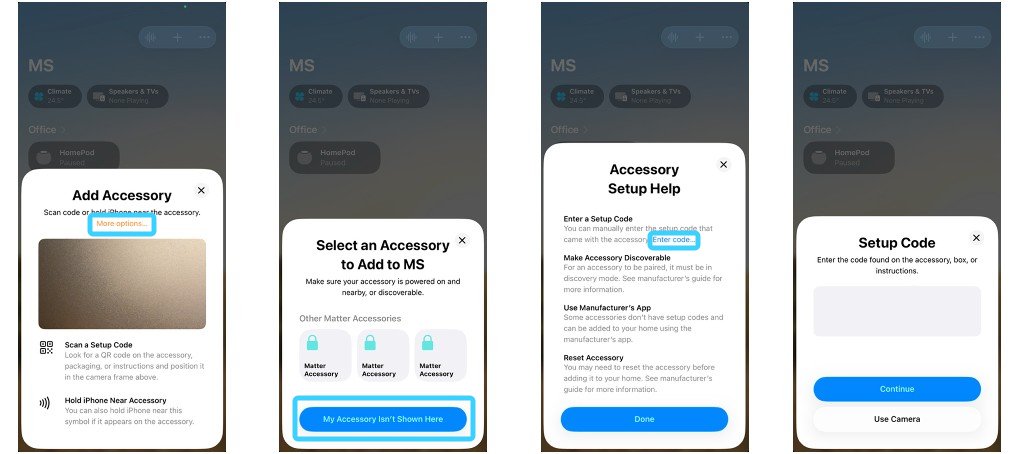
After connection, the Matter-based smart home app will inform you about the additional setup required—this initiates a Matter-based smart lock calibration, signalled with a red blinking LED.
Matter-based Calibration
Only for smart locks not paired with Tedee accounts.
1. Set the lock to the locked position and confirm with a click. The LED changes colour to green.
2. Set the lock to the unlocked position and confirm with a click. The LED turns off, then starts blinking faster in green to confirm the end of the process.
3. If you wish to calibrate the pull-spring feature, finish the calibration process by double-clicking the button. If you don’t want to use the pull-spring feature, finish it with a single click.
Proceed to Matter configuration >>
A smart lock used only in a Matter-based smart home system can always be calibrated without the Tedee app by quickly pressing the Tedee GO(2) button 5 times within five seconds.
Each short press should last no longer than 0.5 seconds, and the time between presses should also be less than 0.5 seconds.
If your smart lock is used simultaneously with Matter integration and the Tedee app, the initial and every subsequent calibration of your Tedee GO(2) can be performed ONLY within the Tedee app >>
Integration using the Tedee app
Available for all Tedee GO and Tedee GO2 (TLV2.0) smart locks. Requires the smart lock’s Owner or Administrator user role.
Ensure your smart lock is properly installed on your door, activated, and paired with your Tedee account. Use the Tedee app to calibrate and configure it.
Configure your smart lock with Tedee Keypad PRO and/or Tedee Door Sensor, if you want to use them.
Verify that your smart lock firmware is updated to version 2.1.3493 or newer. Update if necessary.
Ensure your smartphone is within Bluetooth range of the smart lock.
In the smart lock settings, select Matter.
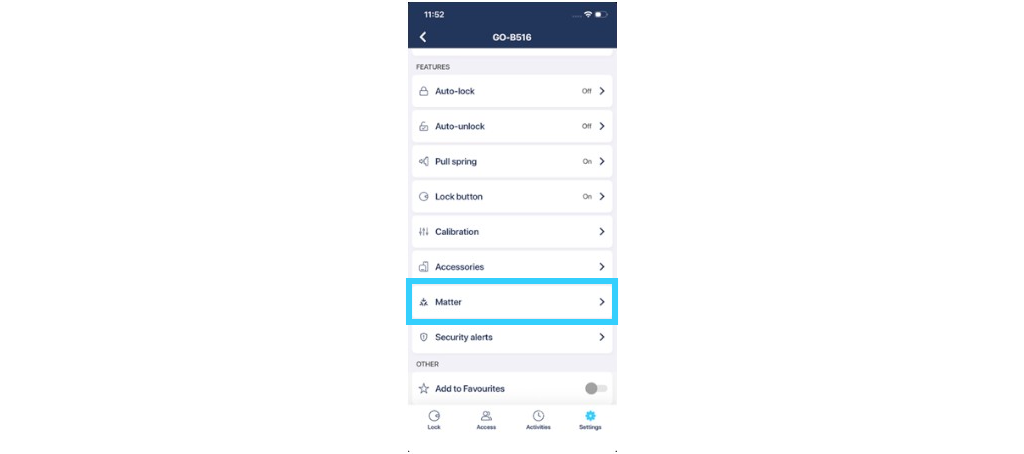
According to your previous use, you will have one of the two paths to follow.
If your smart lock is:
Tedee GO2 OR Tedee GO or Tedee GO2 | Tedee GO or Tedee GO2 Never Matter-activated in the Tedee app. |
The app will display your device’s Matter Setup Code. 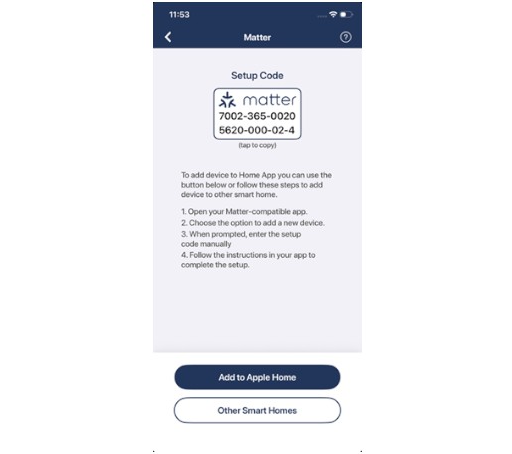 | Tap “Add to smart home”. The app will generate your unique Matter Setup Code. 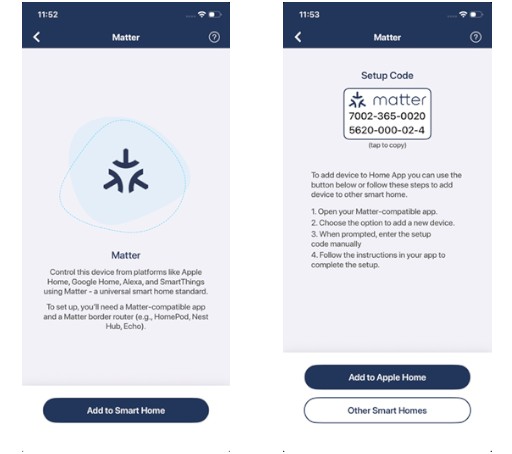 If you do not want to use the Tedee app with your smart lock any longer, and do not need any Tedee accessories used with your Tedee GO(2): You may save your Matter Setup Code, then remove the smart lock from your Tedee account, delete the account, and delete the Tedee app on your smartphone. You will be able to use the Matter Setup Code to integrate your smart lock natively in your smart home app >> |
On iOS, tap Add to Apple Home. On Android, tap Add to Google Home. These buttons will guide you to the relevant app and begin integration.
Other Smart Homes button will lead you to other supported platforms, including Samsung SmartThings and Amazon Alexa, where the integration process continues.
Alternatively, you can copy the Matter Setup Code and paste it directly into your smart home app during integration.
Proceed to Matter configuration >>
Configuration
After inputting your Matter Setup Code—with or without Matter-based calibration—the integration is finalized with a series of configurations, such as setting up the lock location and name.
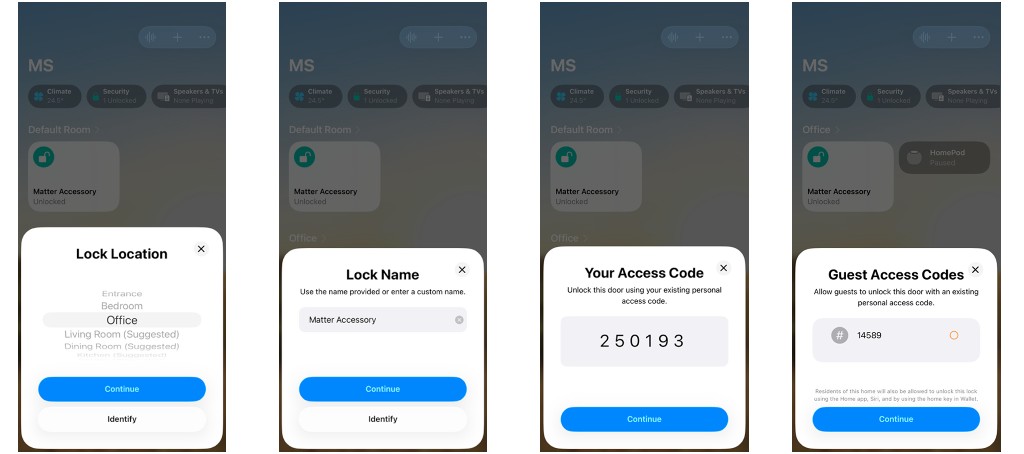
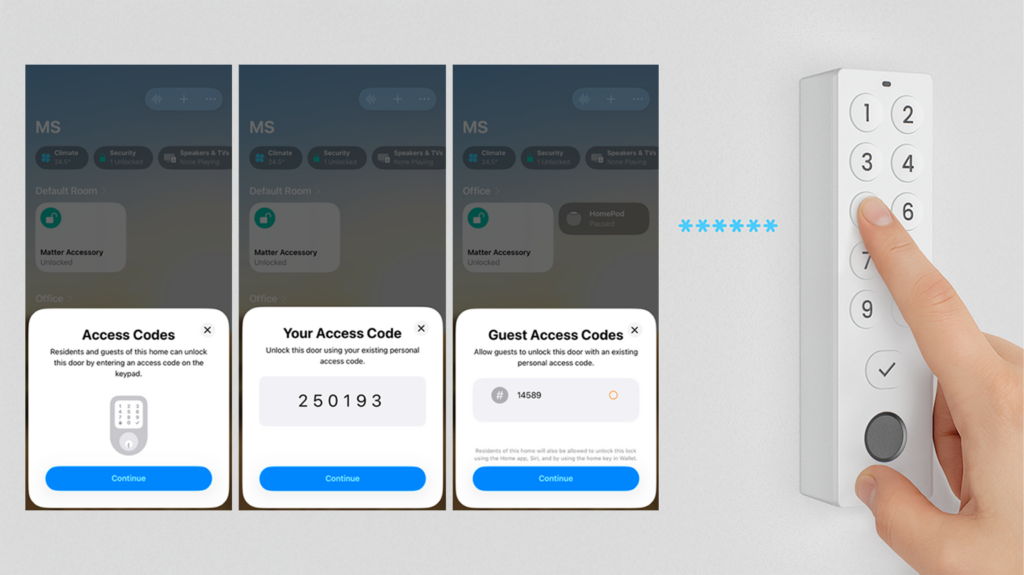
If a smart lock has been paired with Tedee Keypad PRO, compatible Matter-based smart home platforms will initiate generation of the access code and guest access codes. These PINs allow unlocking a door using Tedee Keypad PRO, without the need for a smartphone.
The access code issued at integration may also be required to unlock a Matter-integrated smart lock using voice assistants.
Pairing a smart lock with Tedee Keypad PRO in the Tedee app must be configured in the Tedee app before adding a smart lock to a Matter-based smart home platform.
Be aware that PIN requirements and PIN management capabilities may differ between Matter-based smart home platforms. You can use a maximum of 20 PIN codes, regardless of how many Matter-based smart home systems you add the lock to.
Settings
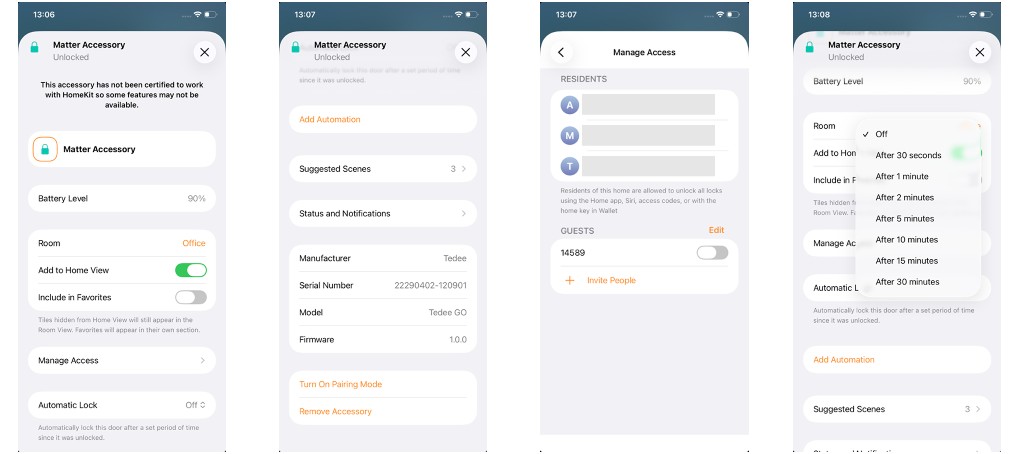
When accessing the device settings for a Matter-integrated smart lock, you may configure its:
• Name and icon
• Check the current battery level
• Change its location within your smart home and manage its visibility
• Browse the smart home residents who can control your smart lock
• Generate and deactivate guest access PINs – if used with the Keypad PRO added to the Tedee app
• Set up the automatic locking timer
• Add a smart lock to automations
• Set up notifications
• Check device details
• Remove the device from your smart home
Be aware that setting capabilities and their tools may differ between Matter-based smart home platforms.
Device Removal
Removing a smart lock from a Matter-based smart home platform removes its configuration and access PINs in the given smart home app.
If a device is simultaneously being used with a Matter-based smart home platform and the Tedee app, removing a Tedee GO(2) from Matter setup does not change Tedee app permissions and configuration. A device removed from Matter can still be unlocked using the Tedee app.
Factory Reset
Resetting a device to the factory settings returns Matter functionality to its default state. The device will not connect to the Matter-based smart home it has been added to.
The method of Matter reintegration depends on the starting state of your device and access to its Matter Setup Code.
If your Tedee GO(2):
| Has a Matter Setup Code sticker on the battery compartment | Does not have a Matter Setup Code sticker on the battery compartment | |
| You have saved your Matter Setup Code generated in the Tedee app. 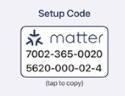 | You don’t have access to the Matter Setup Code, or you have not generated it before. | |
|
Use the Matter Setup Code to reintegrate the device in the Matter-based smart home app >> When you do not want to use the Tedee app and/or you are not using Tedee accessories. OR Set up your smart lock (and accessories, when using) in the Tedee app, then integrate with Matter >> |
Reactivate Matter-compatibility in the Tedee app and obtain the Matter Setup Code of your device >> NEXT Set up your smart lock (and accessories, if using) in the Tedee app, then integrate with Matter-based smart home >> OR If you do not wish to use the Tedee app and Tedee accessories: Delete the Tedee account and Tedee app and use the Matter Setup Code to add Tedee GO(2) to your Matter-based smart home platform >> | |
Considerations
Matter integration introduces a completely new ecosystem when used with Tedee GO(2). Read the passages below to learn more about detailed operation of the smart lock with Matter-based platforms.
Local vs. Remote Connection
Tedee GO(2) connects to Matter over Thread wireless technology. When integrated into a Matter system, it connects to a Thread-based wireless network containing a Thread Border Router. Control commands to your smart lock are sent locally via the Matter network.
In order to deliver your commands to the smart lock, your smartphone (or other smart device used to control the smart lock over Matter) can work in several ways:
| It connects to the Matter Network via Thread | It connects to the Matter network via Wi-Fi | It connects to the Matter network via cloud |
| If your smartphone supports Thread, it connects directly to your Thread network. |
Your smartphone and Matter hub must connect to the same Wi-Fi network.Your Matter hub then controls the smart lock via the local Thread network. | Your smartphone may connect through your platform’s cloud service, which communicates with your Thread Border Router via the internet.Your Matter hub then controls the smart lock via the local Thread network. |
Your smartphone must be equipped with Thread connectivity in order to connect directly: • iPhone 15 Pro & iPhone 15 Pro Max, iPhone 16 line or newer iPhones | Your devices must connect to a local 2.4 GHz Wi-Fi network. | Your Matter hub (Thread Border Router) must support NAT64. • Apple TV 4K, Apple HomePod (2nd generation), Apple HomePod mini Remote control requires an active data connection on your smartphone and a local Wi-Fi router at your property. |
| LOCAL ACCESS | REMOTE ACCESS | |
If your smart lock is paired with a Wi-Fi-connected Tedee Bridge, the remote features of the Tedee ecosystem (access sharing, push notifications, automatic firmware updates, and more) are available simultaneously alongside Matter-based controls.
Multiple Matter Integrations
A single Matter-compatible smart lock can be used simultaneously across multiple Matter-based smart home platforms. This allows different household members to control the same device using different Matter-enabled apps, such as Apple Home, Google Home, or Samsung SmartThings.
All Matter-defined device settings are stored on the smart lock itself and are shared between all connected Matter controllers. When any user changes such a setting in one smart home app, the updated value is written directly to the device and is immediately reflected across all other platforms and users.
Example: Anna uses Apple Home and sets her Matter-integrated Tedee GO2 to lock automatically 1 minute after unlocking.
Robert uses Google Home to unlock the same smart lock. It locks itself automatically after 1 minute, reflecting the shared configuration.
Robert then changes the automatic locking time to 30 seconds using Google Home.
When Anna later unlocks the door using Apple Home, the smart lock will lock itself after 30 seconds. This occurs because the automatic locking time is a shared, Matter-defined setting, common to all users and platforms.
All active Matter integrations for a smart lock are listed in the Matter section of the device settings in the Tedee app. Access to this section is available only to Owners and Administrators within the Tedee system.
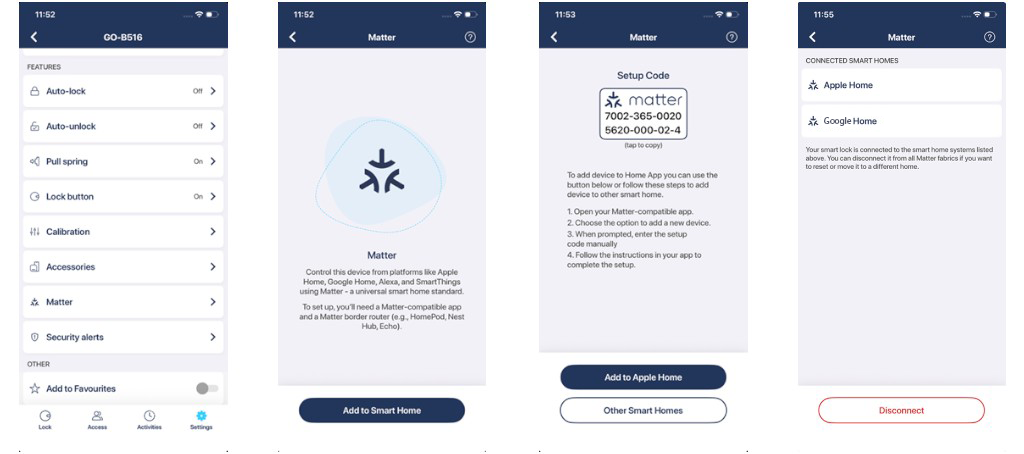
When a smart lock is added to a specific Matter-based platform using the Tedee app, the first user who performs this action becomes the Matter Commissioner for that platform. Only this user can remove the device from that particular ecosystem.
A smart lock Owner in the Tedee app can also deactivate all Matter integrations at once, removing the device from all connected Matter-based platforms.
These management rules apply only when the smart lock is paired with a Tedee account.
If the smart lock is used without the Tedee app, Matter integrations are managed entirely by the respective smart home platforms.
Example: Robert is the Owner of a Tedee GO2 in the Tedee system and has added the smart lock to Samsung SmartThings using Matter.
Anna is an Administrator of the same smart lock and adds it to her Apple Home using Matter. She then shares her Apple Home with Robert.
Both Anna and Robert have the same control and configuration capabilities within the Apple Home app. However, only Anna — as the user who commissioned the device into Apple Home — can remove the Apple Home integration via the Tedee app.
If Anna removes the Apple Home Matter integration in the Tedee app, the smart lock is removed from Apple Home for all users. The smart lock remains fully available in Samsung SmartThings for Robert.
Deleting a particular Matter-based integration in the Tedee app removes all device capabilities in the given ecosystem.
Simultaneous use of Matter-based and Tedee apps
Be aware that if used simultaneously with Matter apps and the Tedee app, the smart lock treats parts of both systems separately.
PINs
If you create a PIN in the Matter app, it will not be visible in the Tedee app, and vice versa. Only the procedure that prevents duplicated PINs will apply.
Automatic locking
Tedee uses separate auto-lock time settings for the Tedee app and for Matter-based systems. These settings are independent and cannot be changed across systems.
For example, after unlocking a smart lock via a Tedee app, the smart lock locks itself automatically as defined in the Tedee app smart lock settings. The device’s activity logs record this as “Locked automatically”.
After unlocking a smart lock using, for example, a Matter-connected iOS Home app on an iPhone, the smart lock secures automatically as defined in the Matter-based settings. The device’s activity logs in the Tedee app record this as “Auto-lock via Matter”.
Smart Lock Operation via Matter-based Platform vs Tedee App
Tedee GO(2) can be integrated into a Matter-based smart home system while either using the Tedee app for administration or using the smart home interface only.
Using a smart lock without the Tedee app may streamline its configuration and everyday use but limits its capabilities. Learn the differences between both modes in the table below.
Be aware that how these features are presented and function for the end user depends on the smart home platform used, and differences exist between them.
Matter-based Smart Home App | Tedee app |
| Automatic Unlocking | |
| Based on automated scenes with predefined triggers | Based on the Tedee system, with IN and OUT zones |
| Pull Spring | |
| Automatic on unlocking if enabled Manual option available only in Samsung SmartThings | Detailed configuration and manual triggering. Available on an unlocked door. |
| Automatic Locking | |
| Timer-based | |
| + After the door is closed, if used with Tedee Door Sensor | |
| Smart Lock Status Locked / Unlocked / Semi-locked / Jammed (Uncalibrated) + Door status: Open / Closed if Tedee Door Sensor is used | |
| Notifications Security alerts / Low battery alerts | |
|
Tedee Bridge required | |
| Activity Logs | |
| General | Detailed Including door state when used with Tedee Door Sensor |
| Access Sharing | |
| Via home-sharing or device-sharing features | Via email-based Tedee accounts with three user access levels (Owner / Administrator / Guest) and access permissions (permanent, temporary, recurring) |
| Up to 20 PINs when used with Tedee Keypad PRO | Up to 100 PINs and 100 fingerprint scans when used with Tedee Keypad PRO |
| Access links when used with Tedee Bridge | |
| Calibration | |
| Triggered by pressing the smart lock button 5 times or automatically after the battery replacement (confirmed with a single click of the button, after the LED starts blinking blue) Only if not paired with the Tedee account | Triggered manually in the app |
| Configuration | |
| Simplified | Detailed |
| Accessory Pairing Tedee Bridge / Tedee Keypad PRO / Tedee Door Sensor | |
| Unavailable | Available |
Read further for a detailed overview of Tedee GO(2) operation using Matter apps.
Unlocking & Pull Spring
In general, triggering an Unlock operation via a Matter app unlocks the smart lock with or without pull-spring action, according to the configuration in the Tedee app and/or Matter calibration >>
In Samsung SmartThings, the app displays two separate buttons: Unlock (with pull-spring only if configured as automatic) and Open (unlocks and pulls the spring).
If the door is closed but already unlocked, pressing the Open button in SmartThings will pull the lock’s spring.
In other systems, if you wish to pull the spring of an already unlocked door, you must lock it first, then unlock it again with the automatic pull-spring feature enabled.
Unlocking by pressing the smart lock’s button works the same way.
Locking
If the door is unlocked via a Matter app, a smart lock locks itself automatically, according to the Matter-based app configuration.
Pressing the button of an unlocked smart lock will lock it on demand.
The Hold-to-lock feature (locking the smart lock with delay, for example after you leave) and smart locking (in sync with Tedee Door Sensor) are configured via the Tedee app and operate alongside Matter controls.
Voice Control
A smart lock integrated into Matter can be operated using voice assistants supported by the chosen platform.
On enabled devices, you may ask Siri, Alexa, or Google Assistant about the status of your device or instruct it to lock the door.
To unlock Tedee GO(2) using voice assistants:
Siri requires your iPhone to be unlocked with PIN or Face ID. Unlocking via smart speakers is not supported. You can use your Apple Watch to unlock the lock by saying the command directly to the Watch.
Google Assistant and Alexa require you to speak aloud an access PIN that you generate during the smart lock’s voice configuration.
Current Smart Lock Status
Matter apps generally show a Locked / Unlocked smart lock status.
The Semi-locked and Jammed statuses mean the device requires calibration using the Tedee app or the Matter-based process. A jammed lock may still be unlocked once, but recalibration is required for continued operation.
If Tedee GO(2) is used together with the Tedee Door Sensor, the app will also show the door’s state: Open / Closed.
Battery Level
The current battery percentage is displayed in the Matter app’s lock screen.
Depending on the platform, the Matter app may notify the user when the battery level drops to 15% and again when it reaches a critical 5% level.
Activity Logs
Different Matter platforms present a smart lock’s activity logs in different ways. Generally, their history logs are simplified and do not log the individual user who unlocked the door.
In the Tedee app activity logs, operations triggered via Matter apps are logged as “Unlocked via Matter”, regardless of which user triggered the action. If you need to log individual users’ access history, keep access credentials in the Tedee app ecosystem.
Access Sharing
User roles (Owner / Administrator / Guest) of the Tedee system are separate entities from Matter-based credentials (Administrator / Resident / Admin / Member / Guest, etc.).
In general, in Matter-based platforms, users are divided into two access management groups:
Owners / Admins / Residents – permanent household members, having full access to device configuration, automation, and features.
Guests / Members – users with temporary or limited control capabilities, with scopes varying between platforms.
Apart from Matter-based sharing, access to Tedee GO(2) can be granted via the Tedee app, with temporary, recurring, or permanent access assigned to individual email accounts.
The smart lock can also be used simultaneously with Tedee Keypad PRO for biometric access, Tedee Keypad PRO or Tedee Keypad for PIN access, and Tedee Bridge for access link sharing. These features are managed using the Tedee app.
Accessory Pairing
Only a Tedee GO(2) smart lock with an assigned Matter Setup Code is by default compatible with Matter.
Tedee Keypad PRO and Tedee Door Sensor can enrich the smart lock’s Matter-based functionality but cannot be directly integrated using Matter. To pair those with your smart lock, the Tedee app with a Tedee account must be used for device configuration and maintained throughout the entire period of use.
Automation
Once integrated, Tedee GO(2) becomes fully compatible with automations, scenes, and routines available on your Matter-based smart home platform. Automation features are platform-based and vary between providers.
Example automations include scenarios triggered by:
• Locking: e.g., when the door locks, turn off the lights and disable the AC.
• Unlocking: e.g., when the door unlocks, turn on the hallway light and disarm the alarm system.
• Battery level: e.g., if the battery is low, send a notification.
• Error / jammed state: e.g., if the lock is jammed, send an alert.
Learn more about smart home operation on compatible Matter platforms