





Mobile widgets: Android
Tedee widgets for Android let you control a Tedee smart lock or a BleBox Smart Relay Module straight from your phone’s screen, without opening the Tedee app first.
This article explains what the widgets are, what you need to use them, the available widgets, and how to add and configure them.
For the general Android steps that aren’t specific to Tedee — adding, moving, or removing any widget — see Google’s Android Help. Because Android looks and behaves differently from one manufacturer to another, the exact steps and appearance may differ on your phone; this article focuses only on what’s specific to Tedee.
How do Tedee widgets for Android work?
Tedee widgets for Android are small controls you place directly on your home screen. Tapping one runs a preset action immediately. You don’t have to open the Tedee app, and it doesn’t need to run in the background.
Your smartphone must be unlocked for widgets to work.
Unlocking actions need a double-tap to confirm.
You must be logged in to a Tedee account with the access permissions required for the widget’s action.
- Depending on your Android version and phone manufacturer, you may be able to add Tedee widgets to your lock screen, but this isn’t guaranteed and works differently from device to device. Even where it’s available, unlocking still requires unlocking your phone.
- Tedee widgets for Android aren’t available as Quick Settings tiles.
- When your Tedee devices are integrated with other smart home platforms (via Matter or Google Home where supported, or via cloud integrations through the Tedee Bridge), they can also be controlled using that platform’s own widgets.
Android widgets can work either through the cloud, using the Tedee Bridge, or over Bluetooth, according to available connections and permissions. A Tedee Bridge paired with your devices and an active internet connection on your phone aren’t always required for Tedee Android widgets to work.
If you have a Tedee Bridge and remote-access permissions, the widget works through the cloud, from anywhere with an internet connection.
If you don’t have a Tedee Bridge, an internet connection, or remote-access permission, the widgets work locally within the smart lock’s Bluetooth range.
The Gate button works through the cloud only, as BleBox Smart Relay Modules only connect to Wi-Fi (no Bluetooth).
- When the Tedee app’s access-sharing feature is used, guests can use widgets only during their permitted access time frame (permanent / periodic / recurring). Outside the permitted access period, the widgets are ineffective.
- For offline operation over Bluetooth, your phone needs a valid security certificate. This certificate stays valid as long as you’ve signed in to your Tedee account in the app within the last 7 days.
Widgets offer instant access to specific actions of selected devices, whose names are shown on the widgets. You can use multiple widgets at a time, each working differently.
If you sign out of your Tedee account in the Tedee app, every widget except Nearby access resets and must be set up again.
Most inactive widgets can be reactivated by tapping them and selecting the device and action again.
The Gate button cannot be reactivated. The action button must be removed and added again.
- Widgets cannot be reconfigured after setup. If you want a widget to control a different device than the one it is currently configured with, remove it and create a new widget.
- If the app is uninstalled from the device, the widgets are removed automatically.
⚠️ Each widget needs your phone to be unlocked to work, and unlock actions also require a double-tap — but the convenience of the widgets can still make it easier to unlock your door by accident when you’re not at home.
Set up widgets only if you’re aware of this risk, and place them where they’re unlikely to be triggered by accident.
Adding a widget
To add a Tedee widget, either:
touch and hold an empty area of your home screen, tap Widgets, find Tedee in the list (you can search for it), or
touch and hold the icon for the main Tedee app and choose Widgets from the tab.
Then, press the widget you want to use, and confirm with the Add button.
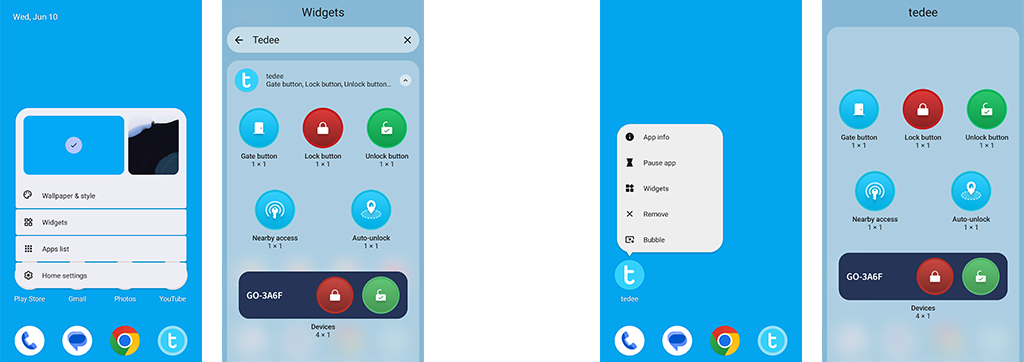
After you choose a widget, a configuration screen opens automatically so you can set which device or devices the widget controls. This cannot be changed afterwards: to control a different device, remove the widget and add a new one.
Learn more about the available widget types and their operation below.
Action buttons
Single-purpose, single-device compact icons provide direct control over your device — a smart lock or a BleBox Smart Relay Module. When setting up the widget, the system asks which of your devices it should work with.
The color of a widget icon shows the action it performs, not the current door status — for example, the Lock action is always red, and the Unlock action is always green. If a widget is greyed out, it means that a required configuration or connection is unavailable.
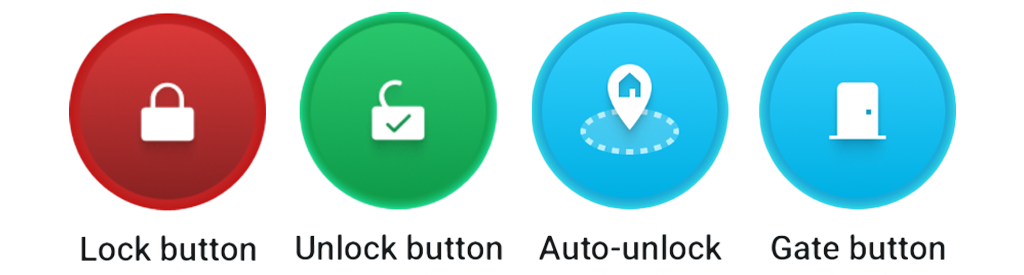
The name of the device the widget works with is written underneath each icon.
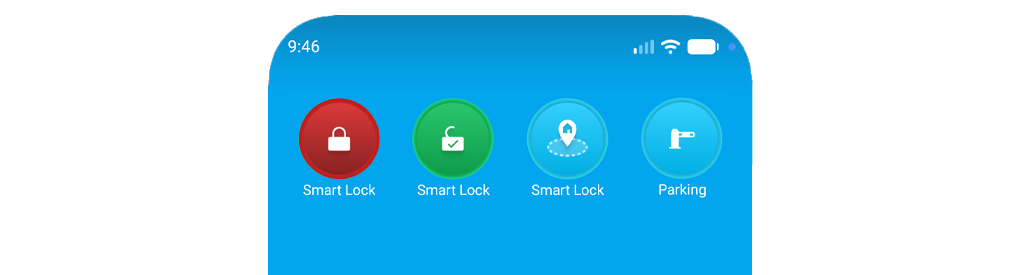
If you log out of the Tedee app or switch Tedee accounts, each action button resets to its default state and must be configured again.
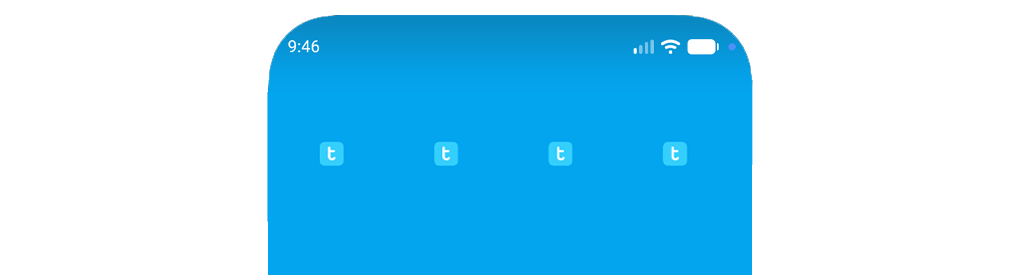
Tap the miniaturized Tedee icon shown on the inactive action button.
For smart locks, first choose which smart lock the widget should control, then choose its function: Lock, Unlock, Unlock and Pull (if the pull-spring feature is configured), or Auto-Unlock.
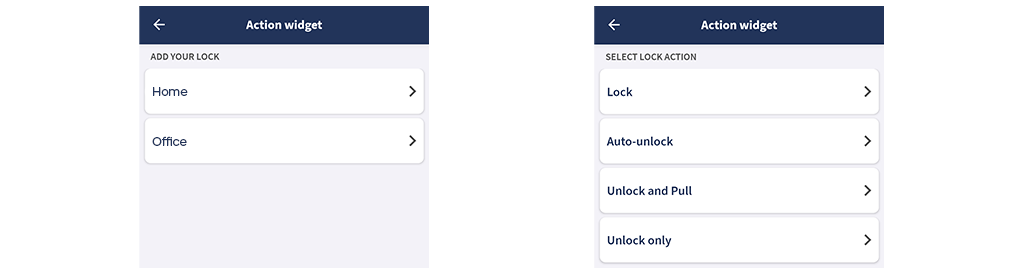
The Gate widget cannot be reactivated from the inactive action button. After logging out or switching accounts in the Tedee app, remove the action button widget and add a new Gate button in its place.
Learn more about action widget types below.
Lock button
A simple lock-on-demand button dedicated to a single smart lock.

When adding it, choose which of your smart locks the button should work with.

Unlock button
Unlocks a predefined Tedee smart lock with a double-tap.

When adding the widget, the system first asks which of your smart locks the button should work with.
If the chosen smart lock has the pull-spring feature enabled, the system asks how the widget should unlock the door: Unlock, or Unlock and Pull.
This choice is made when creating the widget and stays the same afterwards, regardless of whether automatic pull-spring is enabled in the Tedee app and regardless of the current state of the smart lock.
- When a widget is set up to Unlock and Pull, it unlocks and pulls a locked smart lock, or pulls the spring on an already unlocked smart lock.
- An Unlock-only widget never pulls the spring — whether it is used to unlock from a locked state or used on an already unlocked smart lock.

Auto-unlock button
This widget is useful when you want to use auto-unlock but haven’t moved far enough away for it to trigger on its own. Also called the “Coming Home button,” it starts your phone’s Bluetooth detection of the smart lock.

Auto-unlock normally only starts after you leave the OUT zone and return to the IN zone around your home. If you don’t go far enough from your property — for example, walking the dog or popping to a shop around the corner — you might never leave the OUT zone, so auto-unlock won’t trigger by itself. Tapping this widget starts the detection manually instead.
Auto-unlock activation takes a single tap and is confirmed with a system notification, if enabled.
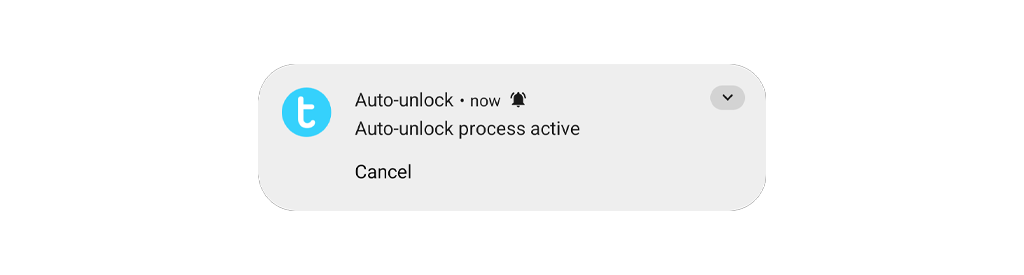
The widget only works with smart locks that have the auto-unlock feature enabled and configured. If the assigned lock doesn’t have auto-unlock configured, the widget appears greyed out.
Gate button
Opens a predefined BleBox Smart Relay Module with a double-tap.
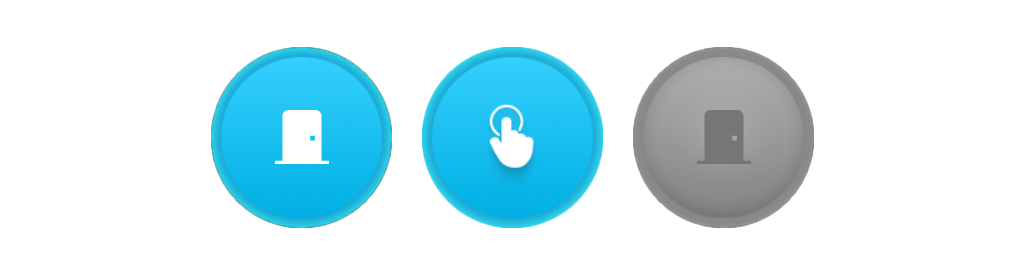
When adding the widget, the system first asks which of your BleBox Smart Relay Modules the button should work with.

As the BleBox Smart Relay Module works over Wi-Fi only, the widget requires an internet connection for both the module and the smartphone (cellular or Wi-Fi). If the cloud connection between the module and the smartphone is unavailable, no matter the cause, the widget is greyed out and inactive.
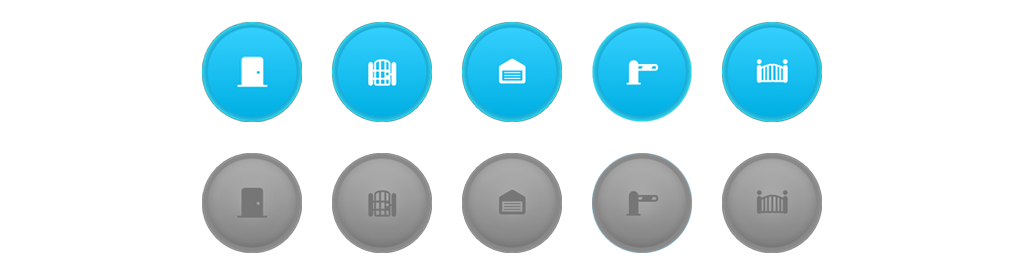
The picture on the button can be changed in the device settings, where you can choose from various symbols of relay-operated mechanisms.
Nearby access
Unlocks the closest available smart lock over Bluetooth.

This makes it a kind of universal unlock button: with several devices used every day — say at home and at the office — a single Nearby access widget unlocks whichever smart lock you’re standing next to. It requires a double-tap to confirm and active access permissions to the smart lock.
If more than one of your paired locks is available within range, it unlocks the one with the strongest Bluetooth signal. It works over Bluetooth only, with no Tedee Bridge or cloud involved. If there are no available smart locks around, the widget’s double-tap is ineffective.
Devices panel
This widget helps you keep everyday routines with multiple devices contained in one panel. It provides the functionality of Lock, Unlock, and Gate buttons for a single device or multiple devices in one compact widget.
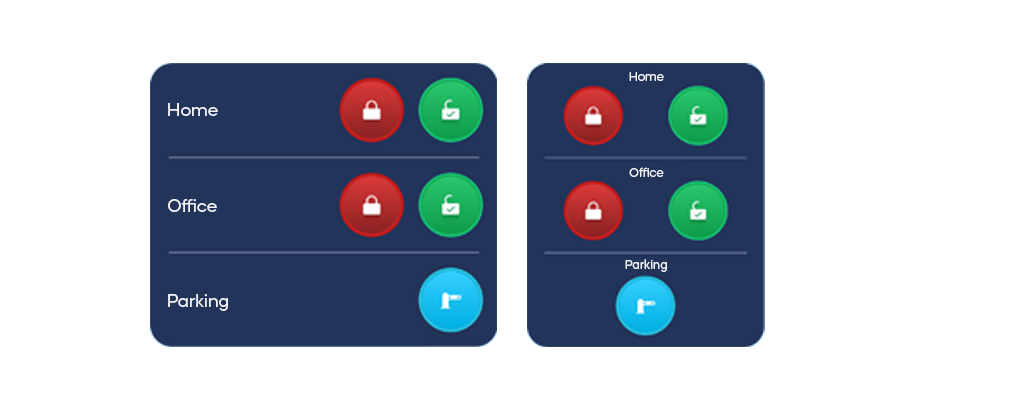
Running an Unlock or Gate action requires double-tapping the button.
When a smart lock’s pull-spring feature is enabled, the Unlock action in the Devices panel follows the smart lock settings and current state. Unlocking the lock from a locked state unlocks the door and pulls the spring only if automatic pull-spring is enabled in the smart lock settings. If the door is already unlocked but closed, the Unlock action pulls the spring only.
Tapping a device’s name on the widget opens the Tedee app on that device’s status screen.
Adding a widget
When adding a widget, first choose which devices it should control, then confirm with the < button in the top-left corner of the screen.
Then, you can set the order of the devices on the widget by dragging them with the three-bar icon on the right of each tab, then confirm with the < button in the top-left corner of the screen.
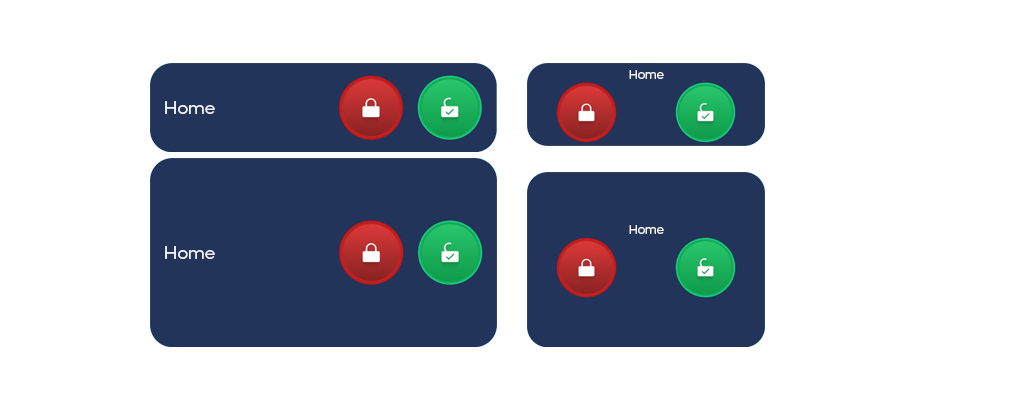
If you configure more than one device, the widget must be resized to accommodate them all, with one block of height per device.
If the widget height is smaller than required to show all preconfigured devices, the devices are displayed in their order from the widget configuration, omitting the devices that do not fit the available height.
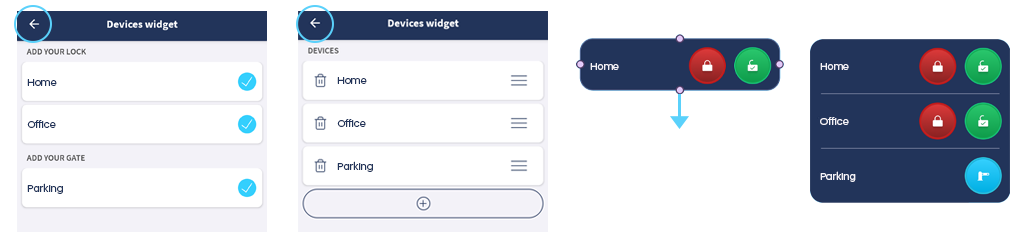
The default width of the widget is 4 blocks. It can be reduced to 3 blocks, but this reduces the visible device name. The device name can be used to access the device screen in the Tedee app.
Resizing the widget keeps action button sizes and their operation the same — it only changes their spacing.
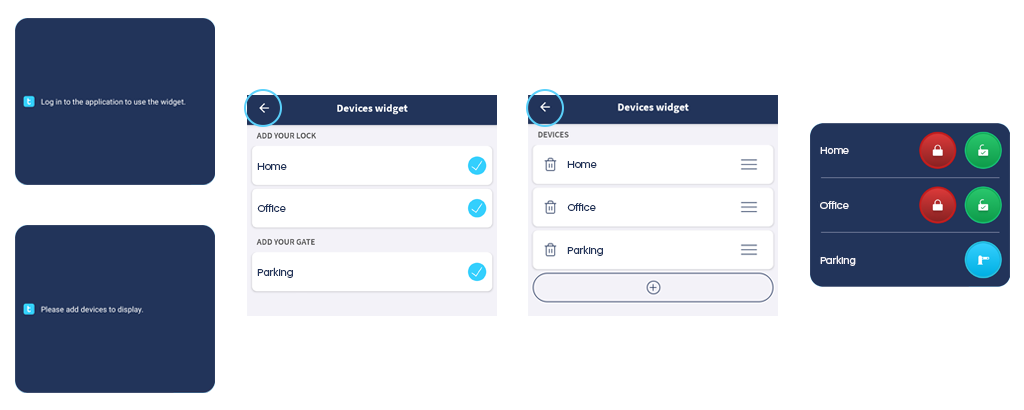
When you log out or switch accounts in the Tedee app, the widget becomes inactive and requires reactivation.
Tap the inactive widget to select the devices you want to use it with. Select smart locks and/or relay modules, then confirm with the < button in the top-left corner of the screen.
Next, you can change the order of devices on the list by dragging them with their three-bar icons. When ready, confirm with the < button in the top-left corner of the screen for your widget to start working again.
Related articles:
- Mobile widgets: iOS
- Automatic unlocking
- Tedee app
- Pull spring
- Access links
- Tedee Portal
- Access sharing
- Tedee GO/PRO: calibration
- Tedee PRO: charging
- Pairing Tedee devices with the app
- Tedee smart bridge: installation
- Tedee GO: installation
- Rental: app unlocking
- Rental: PIN unlocking
- Tedee keypad: configuration
- Tedee PRO: installation
- Cylinder: M&C replacement
- Cylinder: GERDA replacement
- Tedee PRO: installation on a cylinder
- Tedee PRO: installation on a Nordic / Scandinavian adapter


