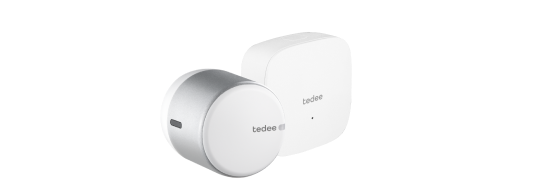










Tedee Biometric Module
User guide and installation manual
WarningThe Tedee Biometric Module is a high-tech electronic device designed for professional use. While the installation may be carried out by the user in accordance with the instructions provided, servicing, repair, or modification of the device must only be performed by a qualified technician. Users are permitted to replace the battery only, strictly following the procedure described in this manual. Any other intervention, including opening, disassembling, or modifying the device, may result in damage, malfunction, electric shock, or fire, and will void the product warranty. If you have any questions or require assistance, please contact your authorized reseller or write to [email protected] |
Introduction
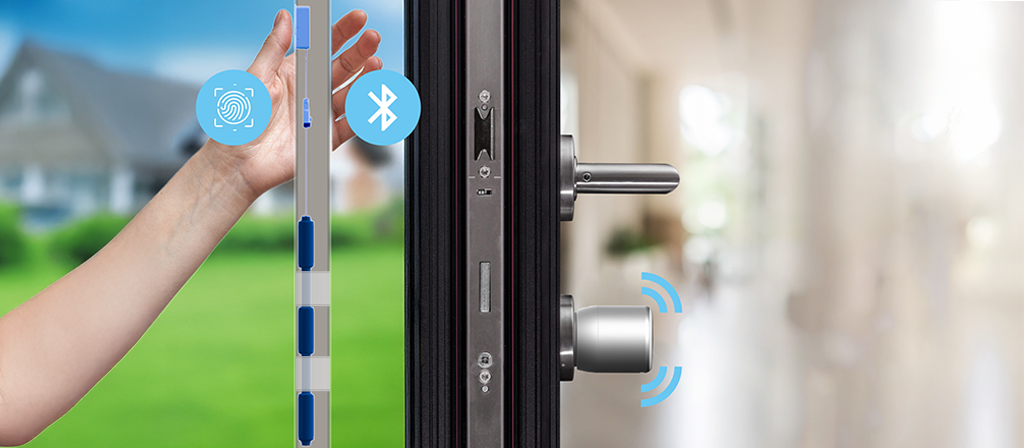
The Tedee Biometric Module is a wireless fingerprint scanner designed for integration into pull bars, allowing the unlocking of Tedee smart locks using up to 100 authorized fingerprint scans.
Connected to a dedicated battery pack, it offers up to 10 years of maintenance-free operation.
Alongside wireless, retrofit Tedee smart locks, intended for installation on top of existing lock hardware and compatible with various international standards, the Tedee Biometric Module enables smart biometric entry. It transforms a standard door without excessive hardware modifications, drilling, or a wired power source.
Key features
- Wireless connection to a Tedee smart lock: Tedee PRO / Tedee GO2 / Tedee GO.
- Designed for seamless integration into pull bars on the exterior side of the door leaf.
- Enables easy incorporation of biometrics without requiring wiring during installation or door production, making “smart door” manufacturing as simple as for a standard model.
- Connected to a battery pack, offering up to 10 years of replacement-free operation.
- Keyless unlocking using up to 100 authorized fingerprints.
Device elements
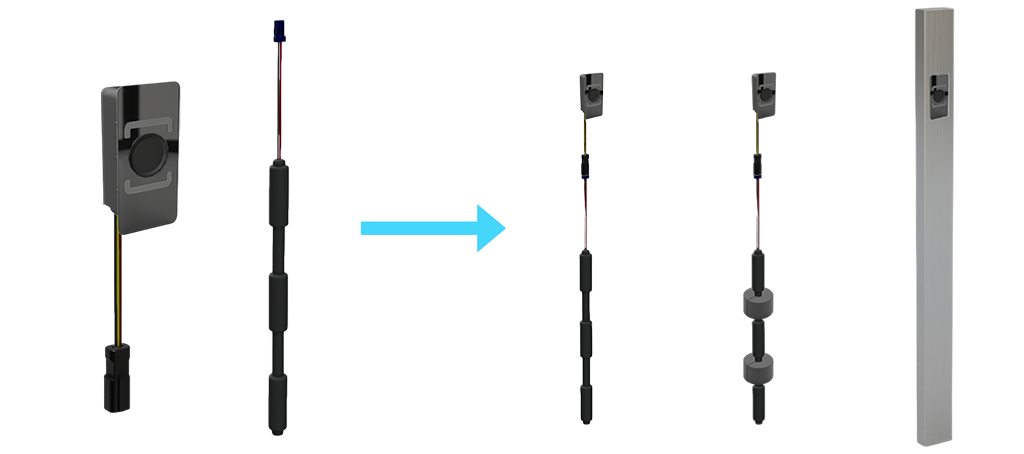
The Tedee Biometric Module setup consists of the following elements:
- Fingerprint scanner equipped with a power connection port
- Battery pack with foam mounts
- Masking glass panel with a pre-applied adhesive pad
Battery pack
An essential part of the fingerprint module is the included packaged battery pack, composed of connected and insulated lithium AA batteries, providing energy for up to 10 years of operation.
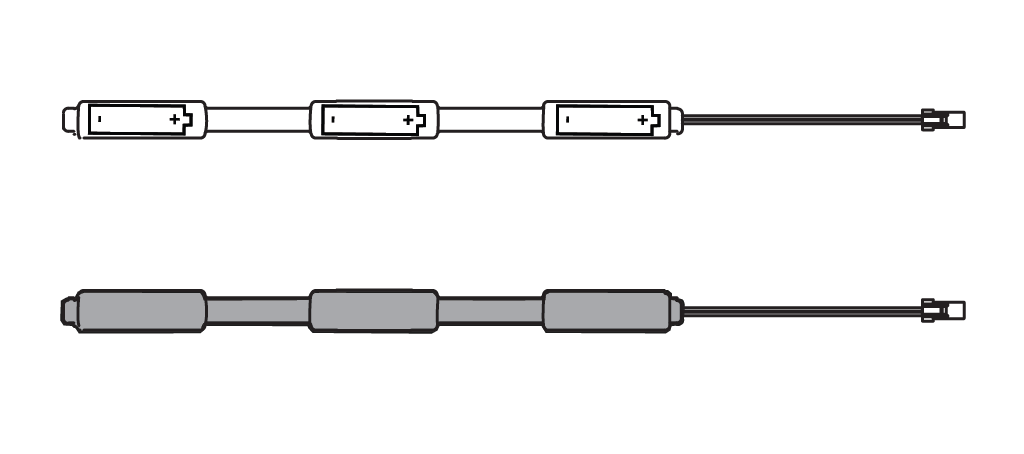
The Biometric Module spends virtually all of its time in a deep-sleep, low-energy state to achieve multi-year runtime with minimal battery maintenance.
The device wakes up from the deep-sleep mode whenever the fingerprint scanner is touched.
To interact with the Tedee app (for device pairing, fingerprint authorizing, configuration, or firmware updates), the Biometric Module must be “woken up” by touching the fingerprint scanner beforehand.
Lithium batteries inside the battery pack provide up to 10 years of Biometric Module operation, protected from passive discharge caused by atmospheric conditions. The power source replacement for the Biometric Module can only be obtained by replacing the complete battery pack. It is not suitable for manual interference or DIY battery replacement. When the cells in your battery pack are depleted, purchase a new battery pack and a replacement glass panel from Tedee.
You will receive a push notification about the upcoming need to replace the battery pack.
The battery pack includes foam mounts. When fixed to the battery pack’s narrow sections, foam mounts act as cushioning inside the pull bar, preventing it from knocking inside the pull bar.
Device placement
In the final installation setup, the battery pack is placed and secured inside the pull bar. The device is designed for pull bars fabricated for Biometric Module installation. Required opening dimensions are presented in detail later in this guide.
When connected to a battery pack inside the pull bar, the Tedee Biometric Module is securely mounted in the cutout, both concealing and protecting it. Once the screws are fastened, a glass panel is applied to cover the screw slots and provide a clean, smooth finish.
The device is engineered for outdoor installation; however, it is not intended for areas with prolonged, direct, and unobstructed water contact. Ensure the slot in the pull bar is tight and well-insulated to protect the device port and battery pack from water exposure.
Smart lock compatibility
The Tedee Biometric Module is compatible with Tedee PRO, Tedee GO, and Tedee GO2 smart locks only. One Biometric Module can only be connected to one Tedee smart lock.
Your smart lock can be simultaneously paired with Tedee Keypad, Tedee Keypad PRO, Tedee Bridge, Tedee Door Sensor, and Tedee Dry Contact.
Wireless connection
The Tedee Biometric Module uses Bluetooth to wirelessly connect to a Tedee smart lock installed on the inside of the door. The device has been successfully tested on most door types; however, certain security doors or hardware made of solid steel may interfere with the Bluetooth connection between the module and the smart lock.
If you can unlock your smart lock through the door via Bluetooth, the Tedee Biometric Module should work properly too.
Tedee app
The Tedee Biometric Module is activated and configured using the Tedee smartphone app. Fingerprint access credentials can be managed, issued, and edited only locally, within the Bluetooth range, through the app.
Tedee Bridge
The Tedee Biometric Module does not connect directly to the Tedee Bridge. It connects only to a Tedee smart lock. Remote access to live activity logs of your smart lock (including biometric unlocking events) requires your Tedee PRO, GO, or GO2 to be paired with the Tedee Bridge, connected to the internet over Wi-Fi. The firmware of the Tedee Biometric Module can only be updated via a Bluetooth-connected smartphone using the Tedee app.
Smart home and alarm integrations
The Tedee Biometric Module is not compatible with third-party alarm installations or smart home systems. Only the Tedee smart locks integrate with compatible cloud-based smart home systems (when paired with the Tedee Bridge) or local installations when used with the Tedee Dry Contact.
Security
The Tedee Biometric Module and the Tedee system do not store users’ sensitive biometric information. When creating new fingerprint-based permissions, the fingerprint data is tokenized, meaning it is converted into non-sensitive, unique data that cannot be retrieved or used elsewhere.
The device is protected against theft by being secured with screws, which are then concealed by an adhesive glass panel.
If the device is added to an “Organization” via the Tedee Portal, a stolen Biometric Module cannot be added to any other account, even after a factory reset. However, if the device is not added to a Tedee Portal “Organization”, it can be reset to factory settings using its activation code and then paired with a new account.
Biometrics
Each fingerprint must be registered in person by tapping multiple times on the fingerprint scanner. Remote registration or sharing of fingerprints across multiple Tedee Biometric Modules or Keypad PRO devices is not available. Each user must be individually registered with their fingerprint at each device.
The Tedee Biometric Module can register scans of any finger (e.g., thumb, index finger, etc.). Each finger’s scan is considered a separate entity, even if one person has multiple fingerprints authorized for access.
The backlit panel around the fingerprint scanner signals access confirmation or denial with green or red LED blinks.
Unauthorized access attempts will not allow entry and will be logged in the smart lock’s activity logs.
Access sharing
Fingerprint authorizations are separate entities, independent from the Tedee app’s email-based accounts. Each fingerprint scan must have a unique name for activity tracking in the Tedee app or Tedee Portal at portal.tedee.com.
Each fingerprint scan can have customized access permissions on select:
- Dates, e.g., Dec 1–31, 2024
- Days of the week, e.g., Thursdays only
- Hours, e.g., 7:30–18:00
Permissions with mixed settings can allow access, for example, only on weekends in 2025 from 10:00 to 20:00.
Anyone trying to unlock the door using a fingerprint outside of their access permissions will not be able to unlock the smart lock. Their activity is logged in the activity history as unauthorized.

Installation Preparation
Before installing the Tedee Biometric Module, read all guidelines below carefully for optimal safety, correct positioning, and efficient operation.
Pull bar opening
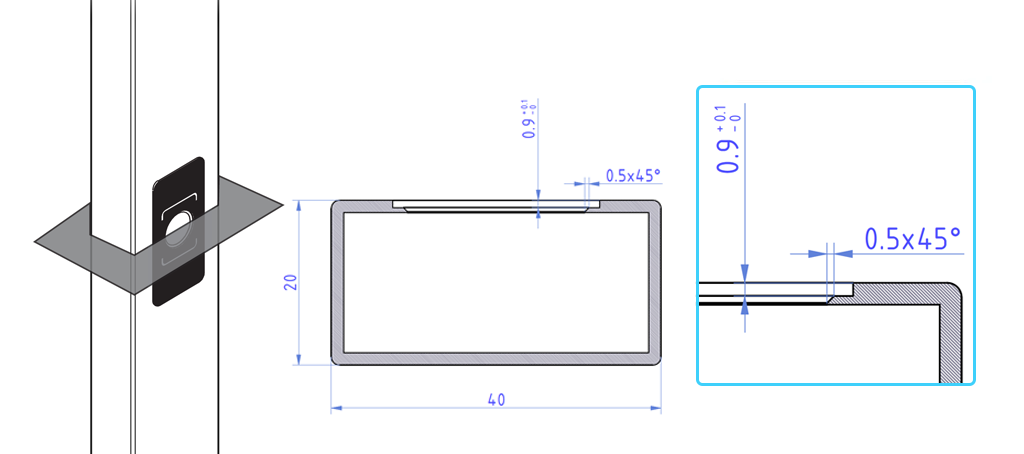
Minimum dimensions of the pull bar profile required are 20 x 40 mm. The pull bar must accommodate a device of the following measurements:
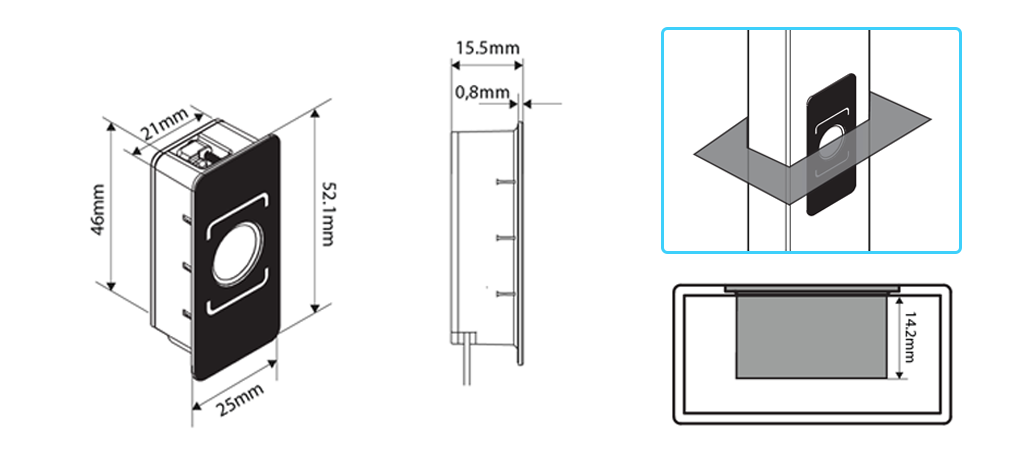
Please refer to the measurements below for the recommended CNC router configuration for the pull bar cavity. Note the asymmetric tolerance notations.
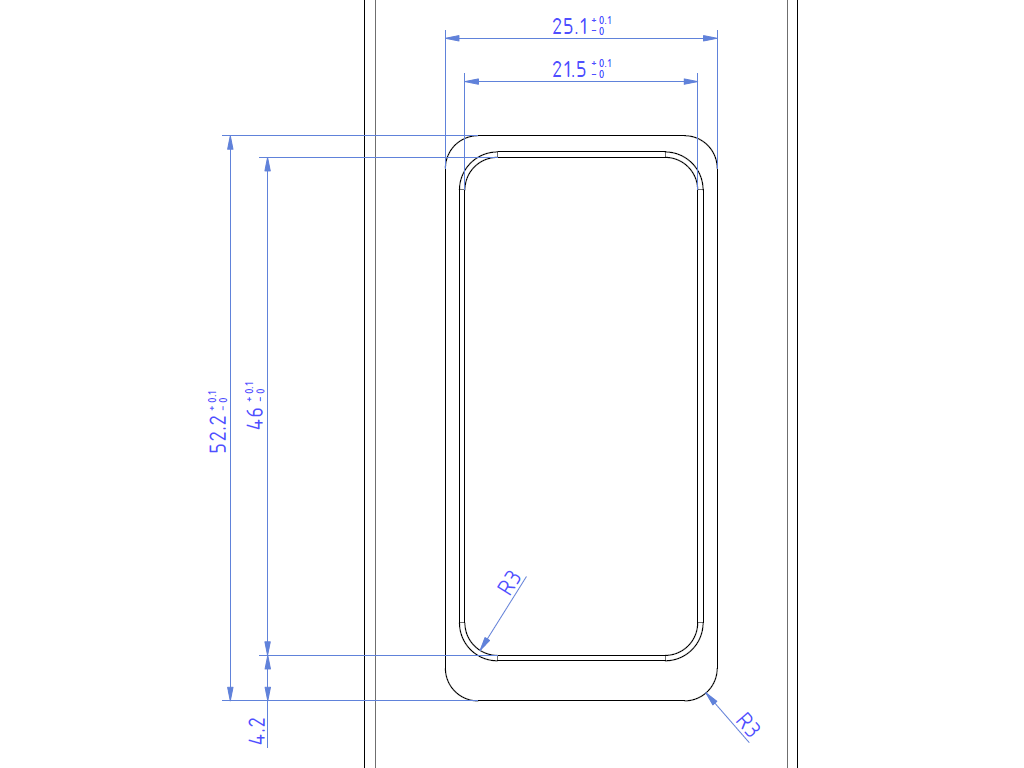
To achieve a smooth, flat finish with the Biometric Module’s glass panel level with the pull bar, a double-depth, angled opening edge is required. Note the asymmetric tolerance notations.
Battery pack
The pull bar must provide sufficient empty volume inside to securely accommodate the battery pack and protect it from water exposure. The power pack dimensions are in the drawing below. The battery pack inside the pull bar must be securely fixed, protecting it from wobbling during door openings and closings.
To prevent the battery pack from hanging loosely from the module or wobbling on the cable inside the pull bar, polyurethane foam mounts are used to cushion the pack and ensure its grip inside the cavity. Ensure the battery pack is securely mounted inside the pull bar; do not leave it hanging on the cable.
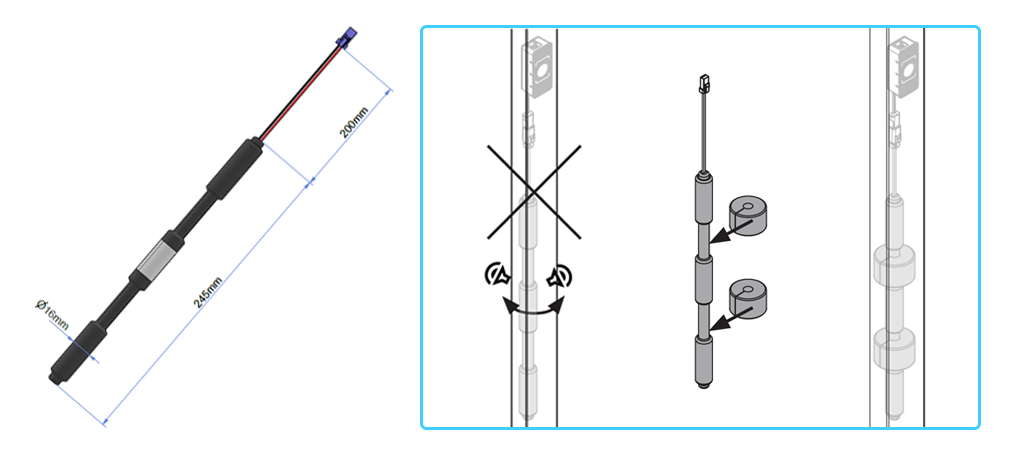
Be aware that, after up to 10 years of use, the battery pack inside the pull bar must be replaced. When securing your battery pack inside the pull bar, consider how you will remove it.
Do not leave a discharged battery pack inside the pull bar after use. Expired batteries may leak, cause corrosion, and release hazardous substances.
Optional wired power source connection
The Tedee Biometric Module was designed for wireless installation in door pull bars and is by default supplied with a durable battery pack. In some situations, providing the device with a direct, wired power supply may be preferred. Any interventions to your property’s wired electrical installation should only be conducted by qualified electricians, following all necessary safety protocols.
To power your device from the external power supply instead of a battery pack, you need to use a safe low-voltage power source and a small DC-DC regulator module. The Biometric Module expects to see what a battery pack would normally provide: 3.6–5.5 V DC on its JWPF connector, with up to about 100 mA when active and almost nothing the rest of the time.
The general solution for a wired power supply for the Tedee Biometric Module is:
Mains (230/120 V AC) → AC/DC wall adapter or DIN-rail supply → DC-DC regulator (all on fixed frame/wall side) → low-voltage DC cable → door/frame cable gland → JWPF plug → Tedee Biometric Module
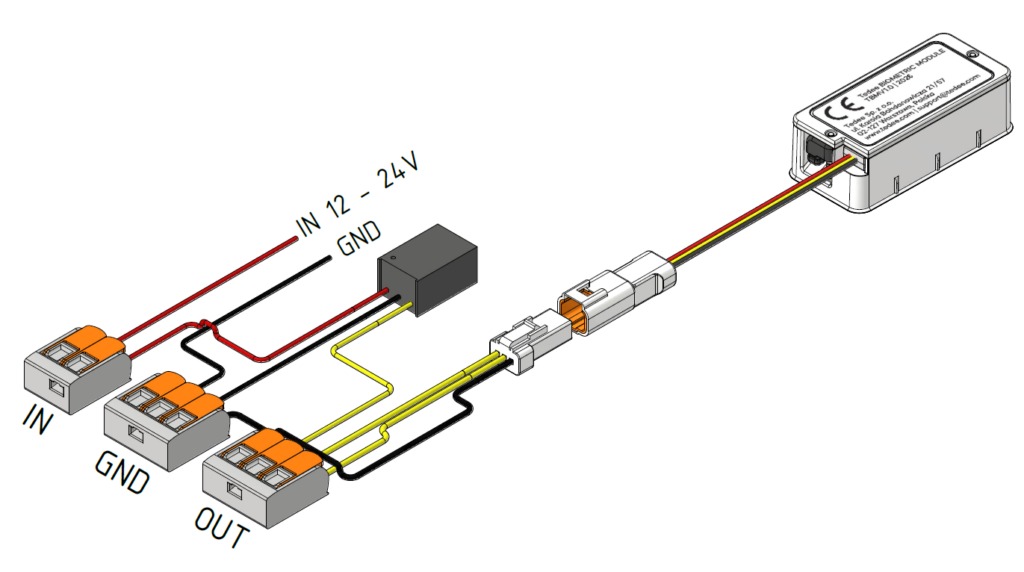
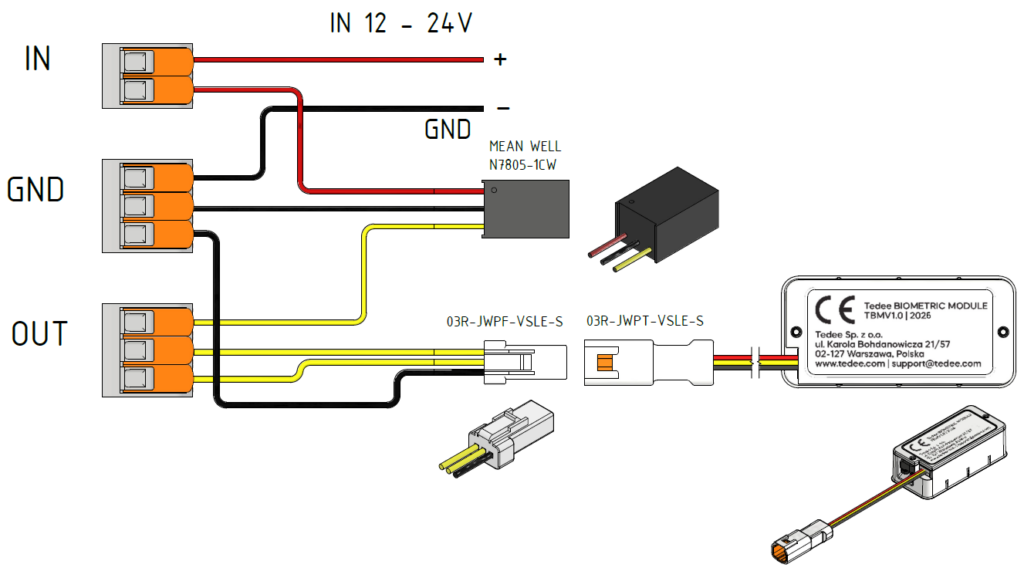
Read further for more information on the wired Biometric Module power connection.
WarningNEVER plug the device directly into an electrical outlet or a 230 V/110 V power supply. There is a high risk of electrocution, fire, and physical injury if ignored. DO NOT touch the outputs of your installation, especially near mains circuits, without proper insulation (e.g., rubber gloves). Even when the device is off, the outputs may still be live (energized). ALWAYS perform installation work with the power circuit disconnected. |
1. Safe power source from the wall
To avoid electrical noise from other devices, use a dedicated AC/DC power adapter (230 V AC to 12–24 V DC) exclusively for this device. Use a certified AC/DC wall adapter (or DIN-rail power supply) that provides isolated low-voltage DC output. The output current rating should be a minimum of 0.5 A, and the adapter must be rated for SELV (Safety Extra-Low Voltage).
The cable length from the power adapter to the DC/DC converter should be limited to a maximum of 2–3 meters.
Do not power the device directly from a 5 V DC power adapter.
2. DC-DC switching regulator module
The adapter’s output voltage is still too high for the Biometric Module, so you insert a DC-DC step-down converter module between the adapter and the JWPF connector.
The module should accept the input voltage produced by your adapter (e.g. 12–24 V DC) and produce a stable output within 3.6–5.5 V (5.0 V is usually ideal). It should be able to supply at least the device’s peak current (100 mA) – using a 0.5–1 A module is fine.
The switching regulator module must be designed for non-isolated operation on low-voltage DC and include guidance for input and output capacitors, maximum input voltage, and recommended fuse or over-current protection. A switching regulator can handle the Biometric Module’s brief current peaks without sagging.
The recommended product is Mean Well N7805-1-CW 5 V, 1 A, non-isolated DC-DC switching regulator.
Through the door/frame gland you should run the cable after the switching regulator, i.e. the low-voltage output that goes directly to the device’s JWPF connector. The cabling from the regulator to the Biometric Module is low-voltage only, so it stays safe throughout the door. Ensure all low-voltage connections are strain-relieved so tugging the cable doesn’t stress solder joints.
The regulator and capacitors are usually mounted on a small board or inside a junction box, so they can’t move or vibrate. Around the DC-DC regulator you generally provide:
– Over-current protection on the input (often a small fuse in series with the + wire from the adapter).
– Input capacitor between the regulator’s input + and ground, close to the regulator (value and voltage rating as the module’s datasheet recommends).
– Output capacitor between the regulator’s output + and ground, also close to the module.
These parts smooth out voltage ripple, help the regulator stay stable, and add a safety margin if there is a short or wiring fault.
3. Adapting to the JWPF battery connector
Tedee Biometric Module has a 3-pin JWPF battery connector socket. To feed power into it, you need to obtain the matching JWPF mating plug (03T-JWPF-VSLE-S) and crimp contacts so you can make a plug-in harness.
Connect the regulator’s output + to the BATT+ wire going to the JWPF plug, and the regulator’s ground to the GND wire going to the JWPF plug. All joints should be well soldered or made with proper crimp/terminal blocks and insulated with heat-shrink or similar.
4. Verification
Before connecting it to the Biometric Module, use a multimeter on the JWPF plug.
Confirm that the voltage between BATT+ and GND is in the safe range (around 5.0 V, definitely between 3.6 and 5.5 V), and that the polarity is correct: BATT+ is positive and GND is at 0 V. Ensure there is no short between the power pins (BATT+ and GND).
Only then do you plug the JWPF connector into the device.
Installation
With a prepared pull bar cutout, proceed with the Tedee Biometric Module installation.
WarningBefore installing the Tedee Biometric Module, please read the accompanying safety information booklet carefully, as your safety is our top priority. It contains essential information that will help you use your device as smoothly and safely as possible. Failure to follow the guidelines and warnings may result in electric shock, fire, and/or severe injury. Batteries inside the battery pack can explode or leak and cause burns if installed backwards, disassembled, charged, or exposed to water, fire, or high temperature. |
Battery pack installation
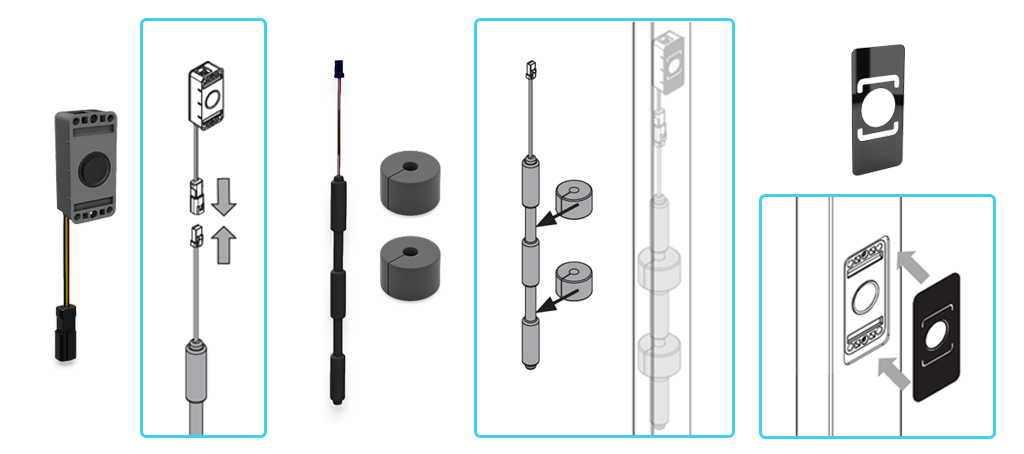
Begin installation by placing foam mounts on the narrow sections of the battery pack.

Connect the battery pack to the Tedee Biometric Module. Do this before placing it inside the pull bar to prevent it from falling and becoming inaccessible for connection.
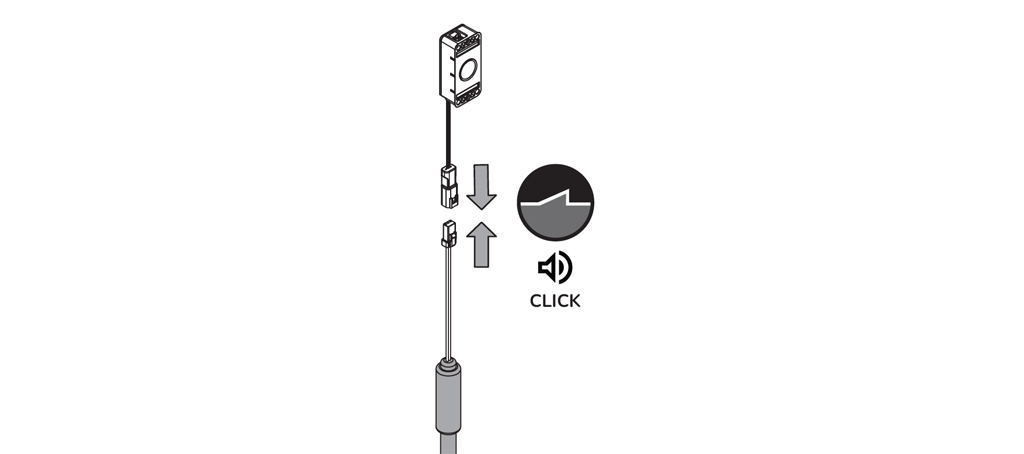
Connect the two 3-pin connectors of the module and battery pack until you hear a click.
Insert the battery pack with foam mounts through the pull bar opening. Its flexible construction allows for easy, bendable installation. Squeeze the foam mounts to fit them inside the pull bar.
Ensure the battery pack is securely cushioned inside the pull bar; if necessary, immobilize it using additional methods.
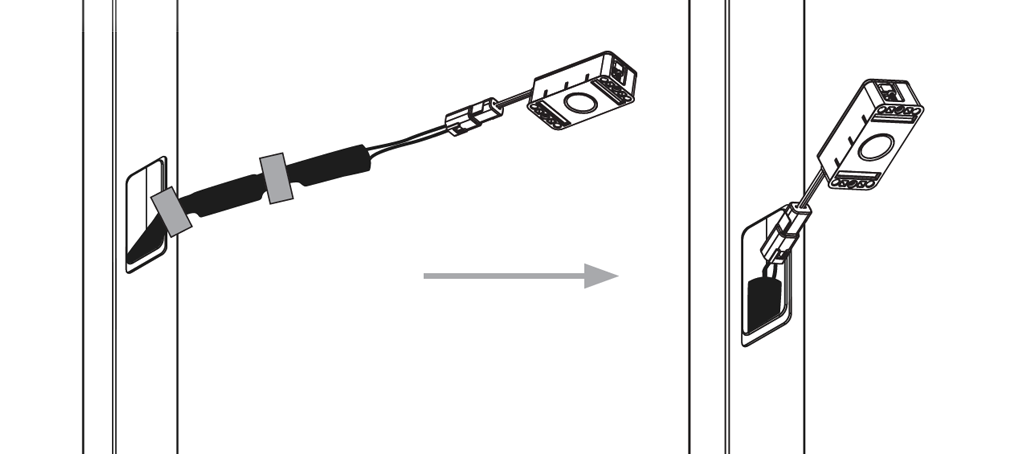
In the final setup, the battery pack must be secured in a fixed position during door opening and closing, and without creating tension on the cable.
Biometric Module installation
With the battery pack secured inside, place the excess cable inside the pull bar and insert the Biometric Module at the opening, starting at an angle from the middle bottom of the device.
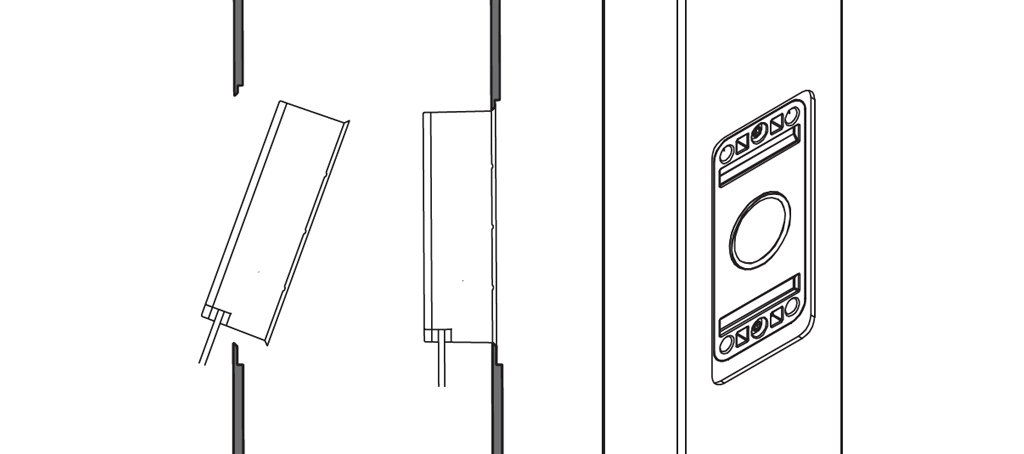
Now gently secure two screws using a T6 Torx key (not included) until you feel a firm hold of the module on the pull bar opening edge.
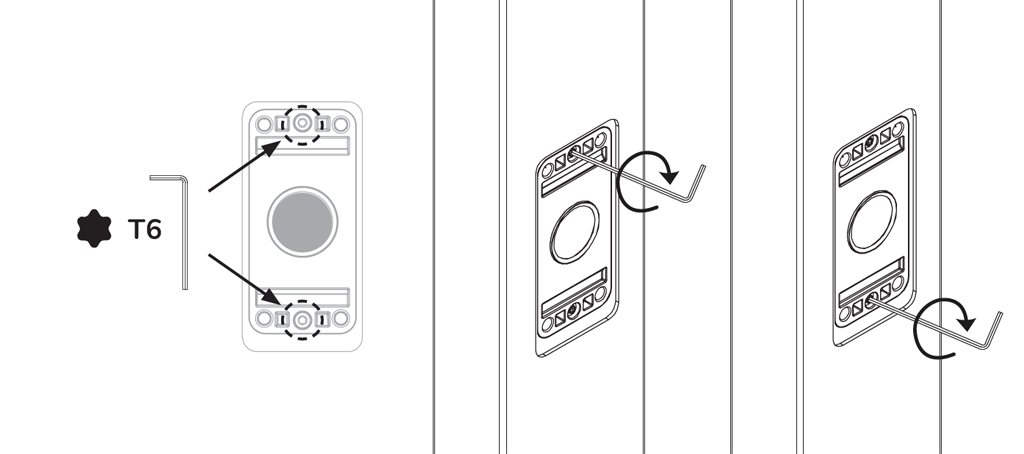
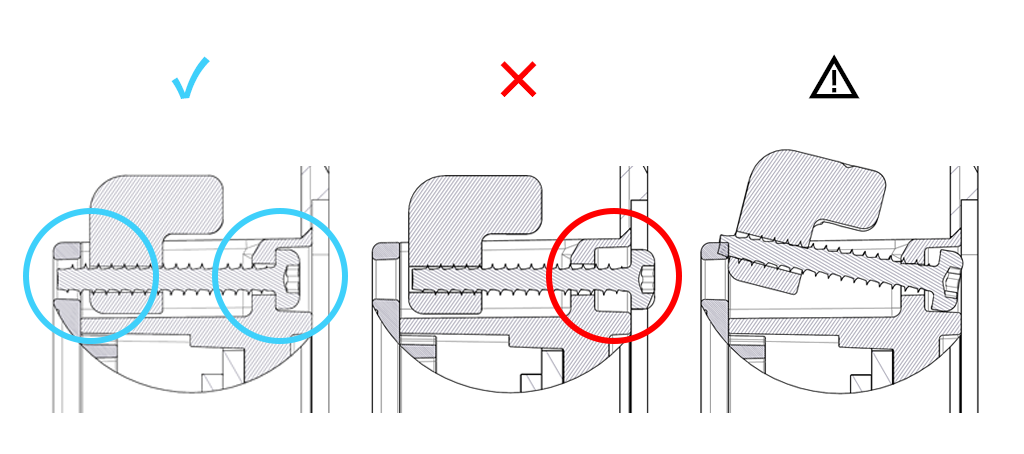
Note: mounting screws work by rotating and adjusting the inner mounting hooks that clamp onto the pull bar opening edge from the inside.
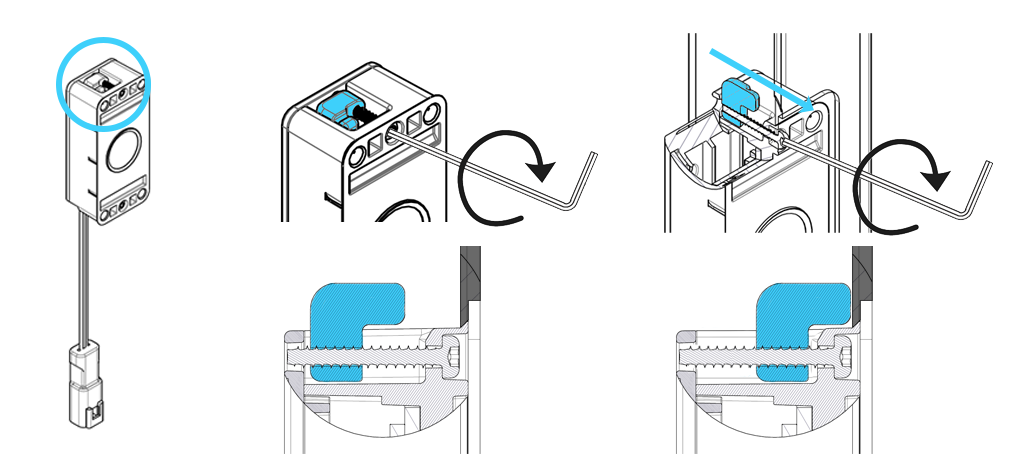
Be careful to steadily push on the Torx key, perpendicularly to the pull bar, to keep the mounting screws inside their sockets. Pulling the screw may remove it from its position and dislocate the mounting hook.
If such a situation happens, remove the Biometric Module from the pull bar completely, align the mounting screw with its slot, and try again.
Glass panel installation
The glass panel covers the screw slots and provides a seamless finish. The new box of the Tedee Biometric Module contains two glass panels, with one being an extra in case you need to reinstall the device.
Begin by removing the protective foil from the adhesive pad on the back of the panel. Do not remove the transparent protective foil on the front yet.
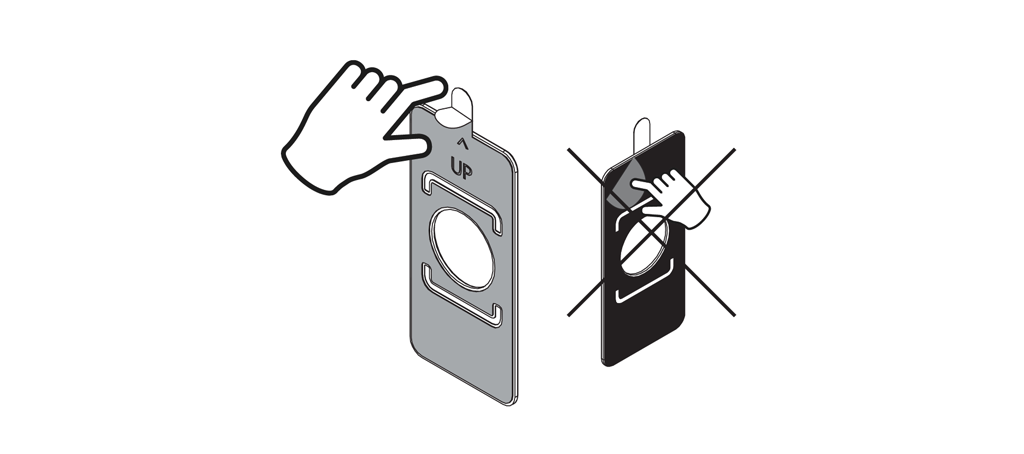
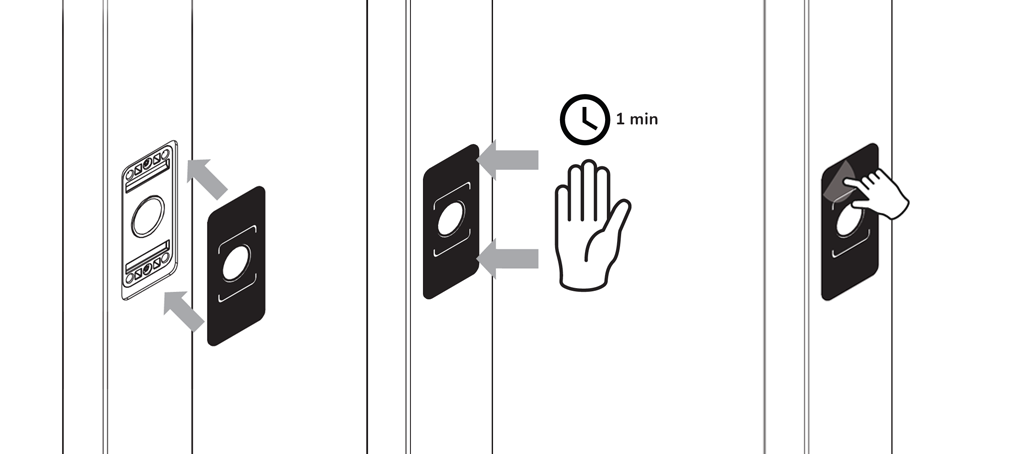
Place the panel on the Biometric Module and hold for 1 minute to ensure a secure hold. Afterwards, remove the transparent protective foil from the front of the panel.
Activation
Before activating your Tedee Biometric Module, ensure that the Tedee PRO, Tedee GO, or Tedee GO2 smart lock you intend to use is already added to your Tedee owner account.
Note: All devices to be paired have to be added to the same owner account. If your devices are added to an “Organization” (via the portal.tedee.com feature), the Biometric Module must also be added to the same “Organization” during the inclusion process.
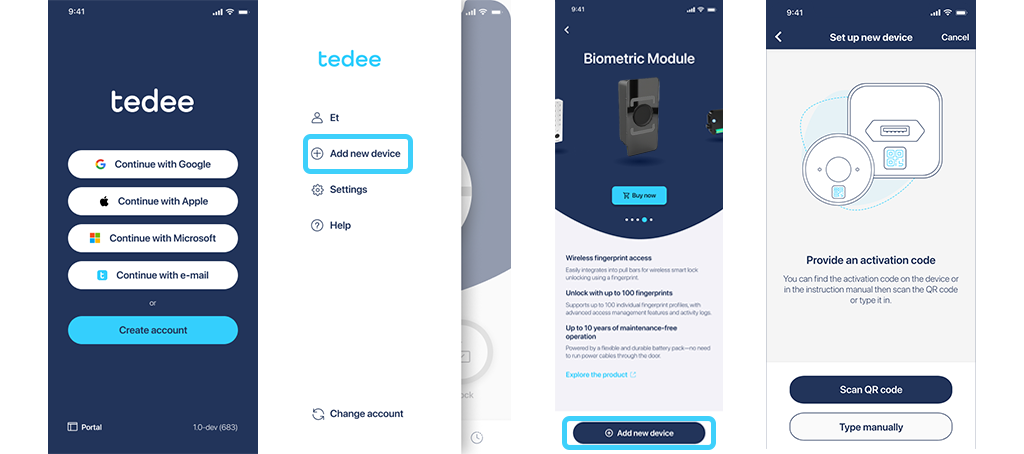
Launch the Tedee app on your smartphone.
Log in with the account that has owner authorization for the smart lock you want to pair with your new Biometric Module.
Tap the menu icon in the top-left corner of the screen and select “Add new device.”
Press the “Add new device” button.
You will be asked to provide an activation code.
The activation code for your Biometric Module is supplied on the activation code card in the box.
If ever lost, the activation code for emergency purposes is also placed on a sticker on the device.
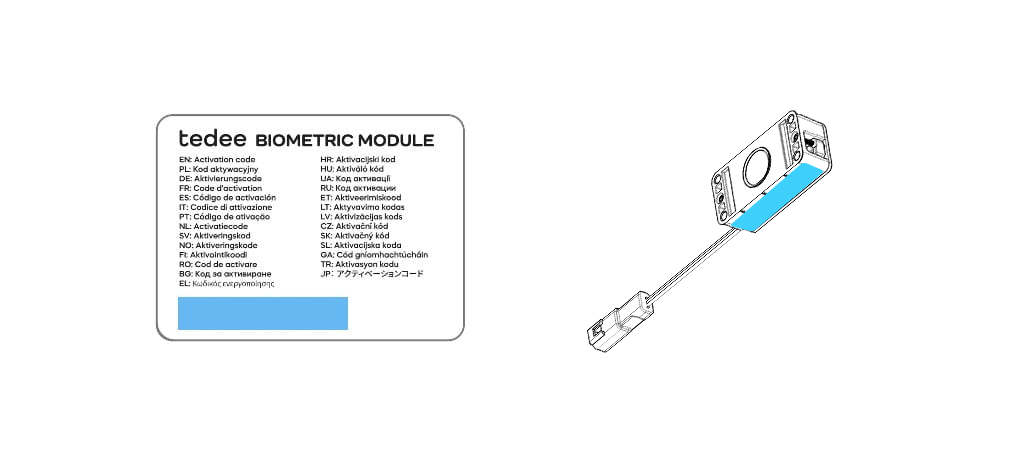
Scan the code with your smartphone camera or enter it manually using your keyboard. Tap the fingerprint sensor to wake up the device.
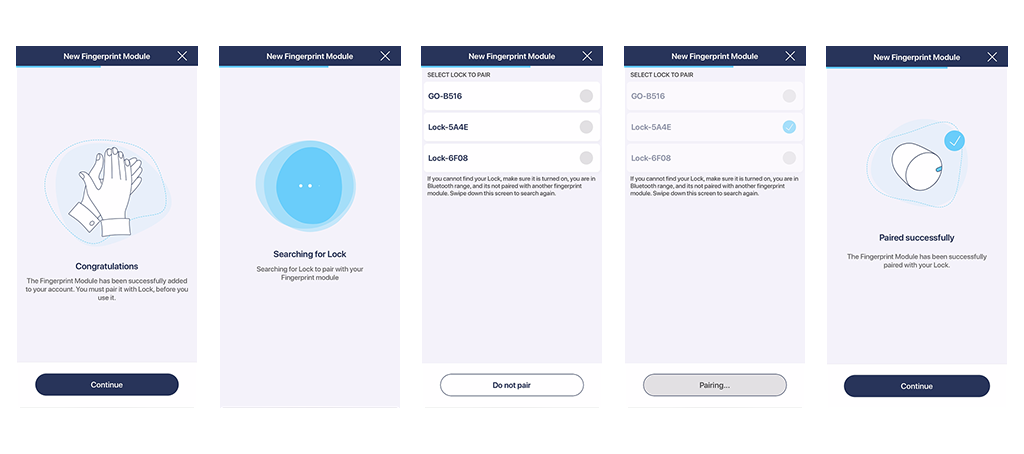
The app will connect to the device, check for and download its firmware update. After a moment, the device will be paired with your account.
Now, you need to pair your Biometric Module with your smart lock. Continue, and the app will scan for smart locks within Bluetooth range. Choose the smart lock to pair with the Biometric Module and confirm. At the final stage, you can complete the device settings: set its name, operating time zone, and share administrative access with other users.
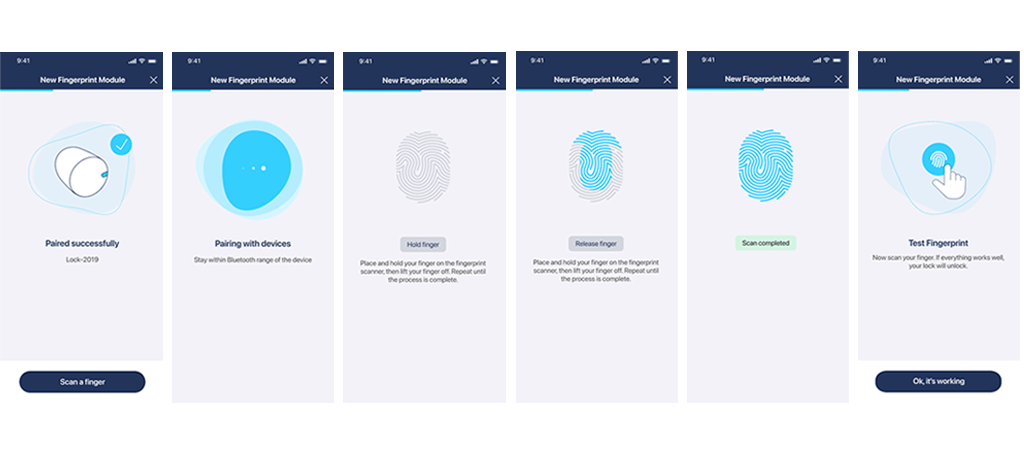
After connection, the app will prompt you to authorize the first fingerprint scan. Follow the steps on the screen of your phone.
Operation
Access management
To manage access to your Biometric Module, select it from the list of your devices.
Alternatively, you may access it via the Accessories section available in the settings of your connected smart lock.
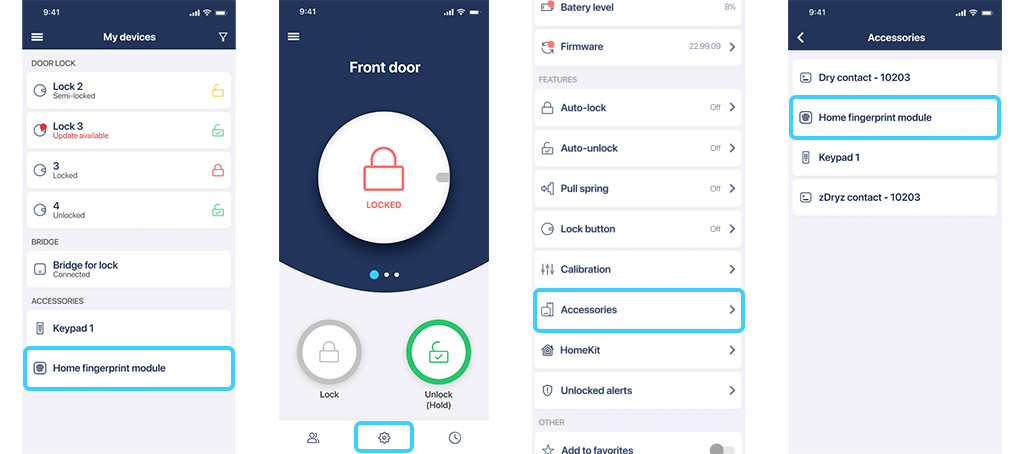
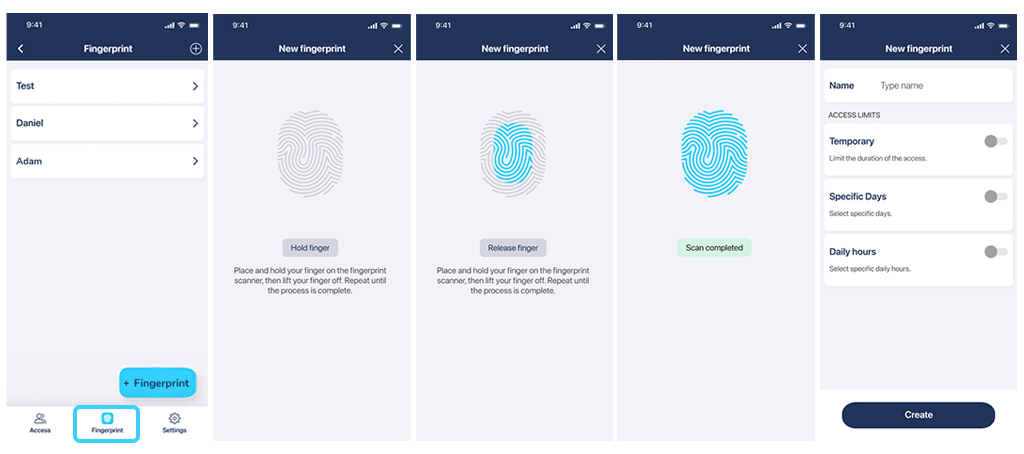
Tap the “Fingerprint” tab at the bottom of the menu to see all active fingerprint authorizations, which you can edit or delete.
Note: Your smartphone must be connected to the Biometric Module locally, via Bluetooth to create new fingerprint scan permissions.
If you want to add a new authorization, press the “+” button in the bottom-right corner.
Follow the steps on the screen and tap your finger on the scanner as instructed.
Now, name the access credential and select the access permissions: permanent, temporary, recurring, or a combination. Confirm by pressing “Create.”
User management
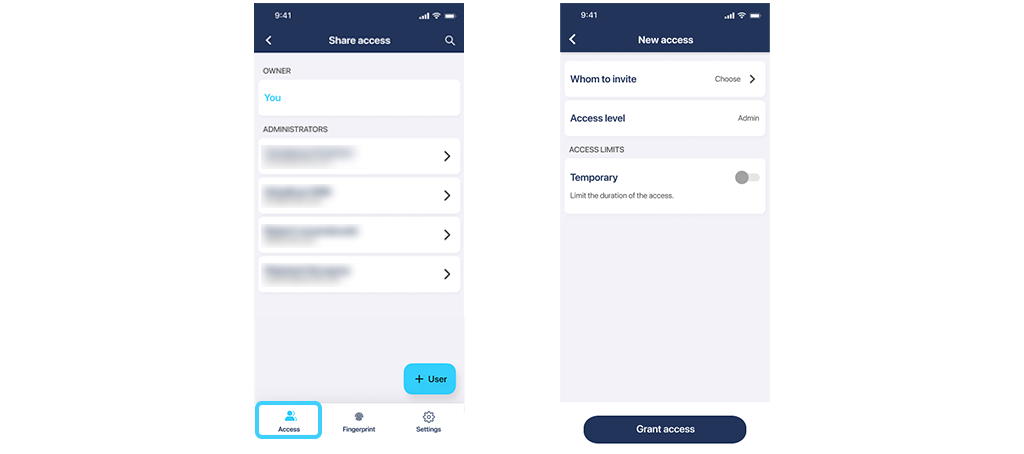
The Users tab of the Biometric Module device screen allows you to share device management with others.
Note: Sharing control over the Biometric Module with other users is separate from sharing access to a smart lock.
The Biometric Module administrator can add, edit, and remove fingerprint credentials, as well as access the device settings.
There is no guest user role for the Biometric Module.
Settings
You can access the device configuration by selecting the Settings tab at the bottom of the Biometric Module device screen.

Here, you can:
- Rename your device.
- Check connection status, battery level, and firmware version.
- Unpair it from a smart lock and pair it with another.
- Add the device to your favourites.
- Edit the operating time zone.
- Access detailed device information and service logs.
- Remove the device from your account (owner only).
Battery replacement
The battery pack for the Tedee Biometric Module is not suitable for manual interference or DIY battery replacement. When the cells in your battery pack are depleted, purchase a new battery pack and a replacement glass panel from Tedee.
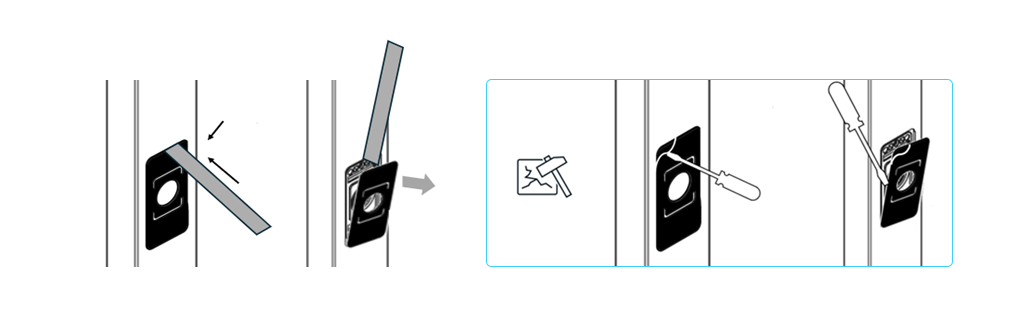
To remove your Tedee Biometric Module from the pull bar, use a hairdryer on a low heat setting to warm up the device for a couple of minutes, loosening the adhesive underneath the panel.
Use a flat tool along the edge of the panel to remove it from the pull bar.
If this is not successful, carefully break the glass panel and remove the panel fragments using a flat screwdriver. Be extremely careful not to hurt or cut your fingers, or scratch the pull bar surface.
Remove any adhesive residue from the device using a soft cloth soaked in isopropyl alcohol.
Insert two M3 screws into the slots on diagonally opposite edges of the device and tighten them lightly. Use a T6 Torx key to rotate the two mounting screws counterclockwise.
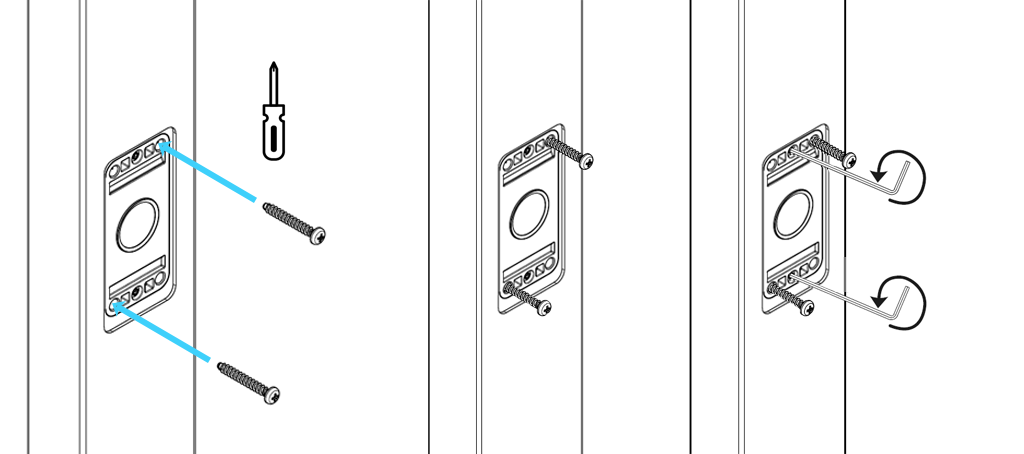
Be careful to steadily push on the Torx key, perpendicularly to the pull bar, to keep the mounting screws inside their sockets. Pulling the screw may remove it from its position and dislocate the mounting hook.
Holding the two added screws, pull the Biometric Module out of the pull bar.
Unplug the battery pack from the module and remove it by carefully pulling on the cable.
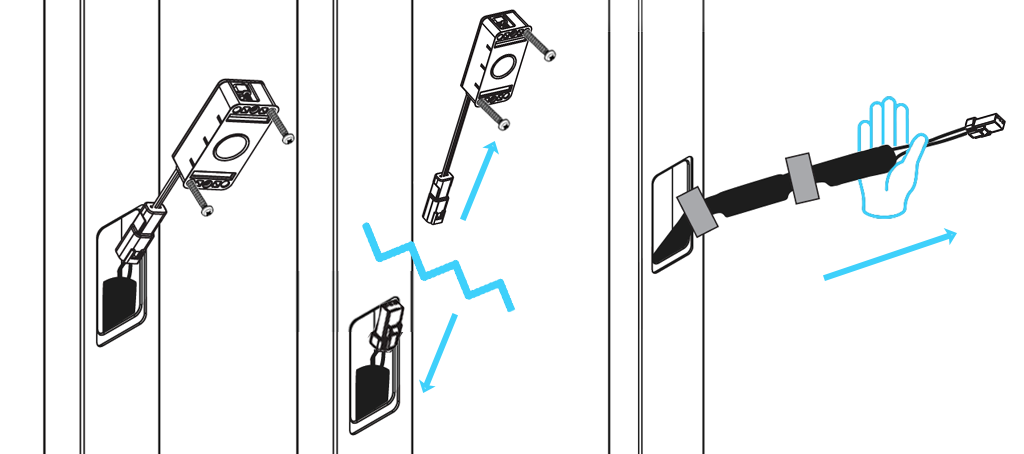
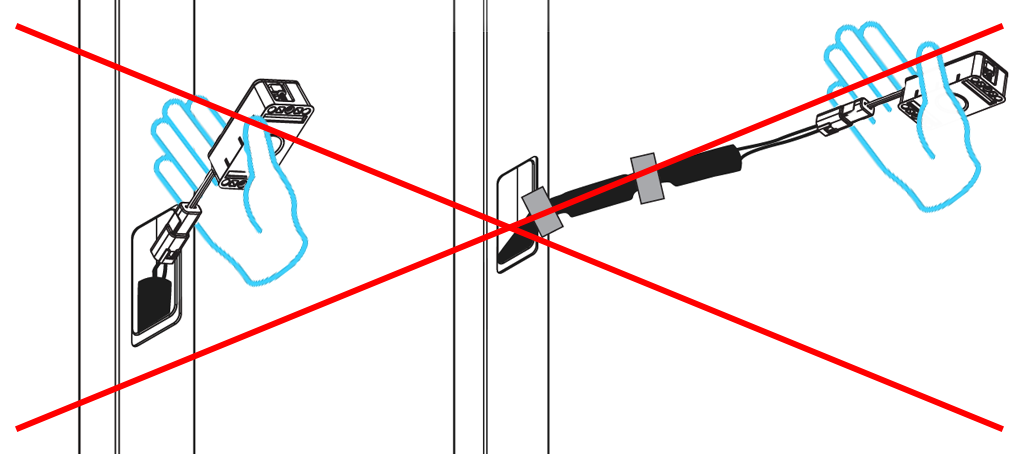
Do not pull on the connected Biometric Module to remove the battery pack – this may damage the device’s cables.
Remove two M3 screws from the front of the module. Now, follow the standard installation steps using the new battery pack.
What not to do during battery removal:
• Do not use a hairdryer on a high heat setting or hold it too close to the device, as excessive heat can damage plastic components or internal adhesive layers.
• Do not pry aggressively or use metal tools with sharp edges along the panel, as this could scratch, crack, or deform the surface.
• Do not pour isopropyl alcohol directly onto the device; always avoid liquid exposure near internal electronics.
• Do not use the wrong tool or apply force while unscrewing; make sure to use a correctly sized T6 Torx key and avoid stripping the screw heads.
• Do not insert tools too deep or apply uneven pressure under the module, as doing so could dislodge internal components or damage connectors.
• Do not pull on the battery pack with excessive force; if it is secured with adhesive or brackets, attempt gentle removal after reheating if necessary.
• Do not begin installing the new battery pack before ensuring the surface is clean, dry, and free from any debris or adhesive residue.
Factory reset
The factory reset procedure erases all locally stored data from the device, including enrolled fingerprints, smart lock pairing, and configuration.
A factory reset of the Tedee Biometric Module is automatically triggered whenever the device is removed from a user account (“Delete device” in the device settings panel). This option is available only to an owner-level user.
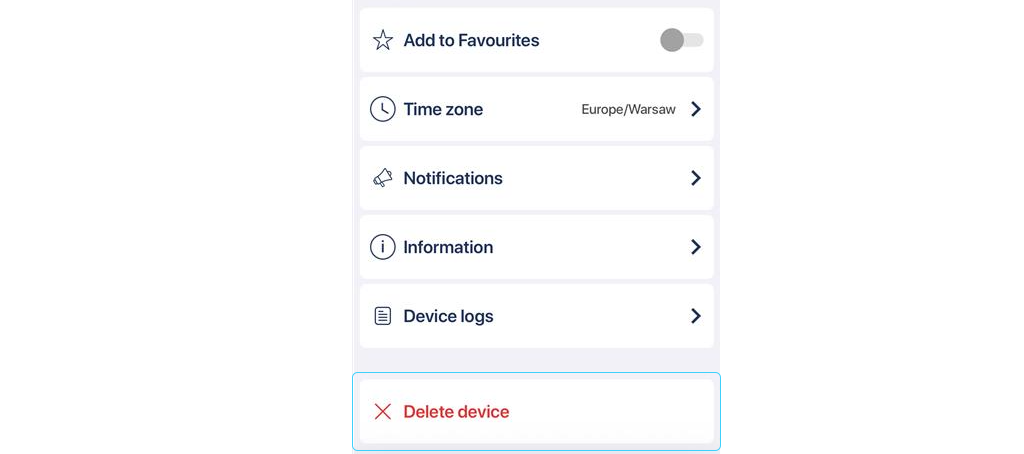
For the reset to be completed immediately, the module must be awake, powered, and within the smartphone’s Bluetooth range during removal.
If it is not, the device is removed from the user account only. It will be reset to factory settings the next time it is added to a Tedee account.
Factory reset during account pairing
The device is added to a Tedee account as usual by scanning the activation code after launching the device activation in the app.
Note: If the device has been added to a Tedee Portal “Organization”, it must be removed from it before being reactivated.
Even if it has been removed from the previous user account, membership in an “Organization” is a separate entity managed in the Tedee Portal and prevents the device from being added to a new Tedee account.
If a factory reset is required, the app displays an informational screen and initiates the reset process on the device.
The user must confirm the reset by touching and holding the fingerprint sensor for at least 10 seconds, until the red LED turns on. Immediately release the finger when the red LED turns on.
The device reboots, removing all prior data. The Tedee app then reconnects, and the re-initialization process continues.