






Guesty
Integration
Begin integration by logging in to your Guesty account at https://app.guesty.com/auth/login.
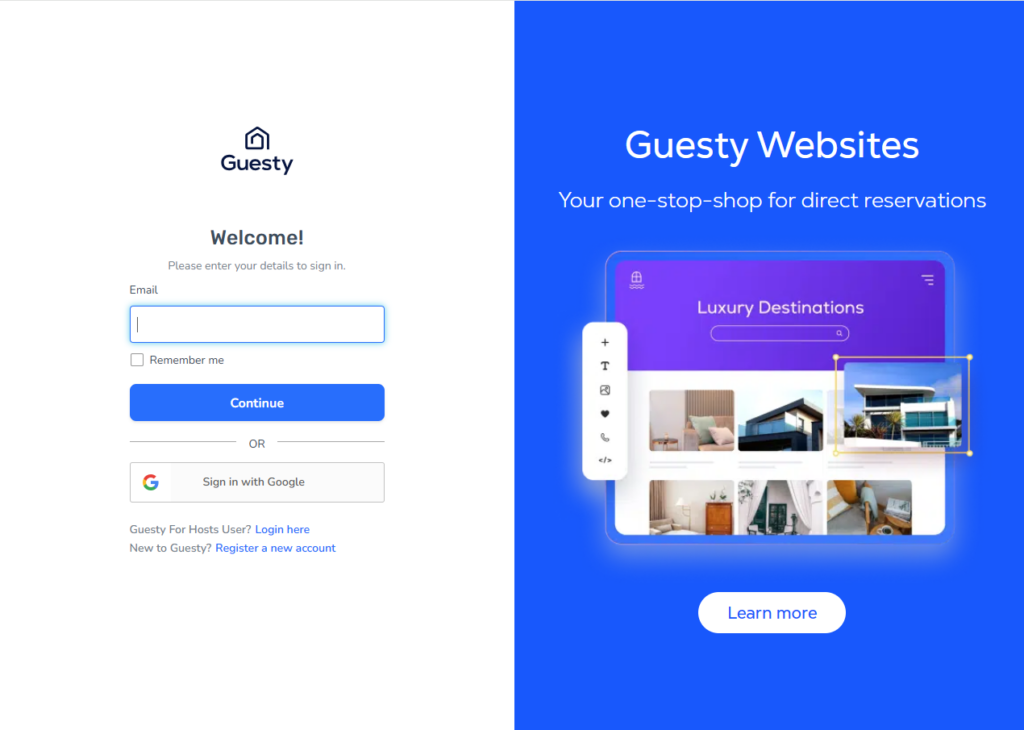
When logged in, in the top-right corner of the screen, open the Integrations menu and select Marketplace.
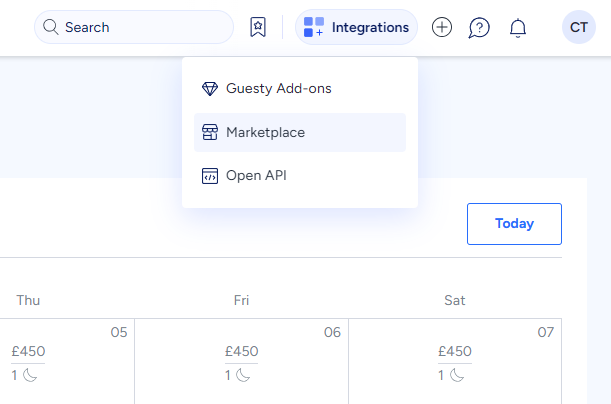
In the Marketplace search bar, type Tedee and select the Tedee integration from the filtered results.
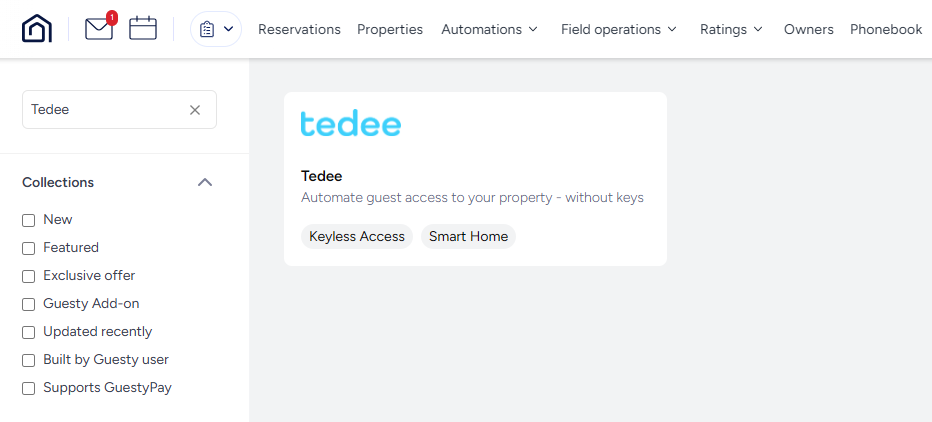
Click the Connect button on the right side of the screen.
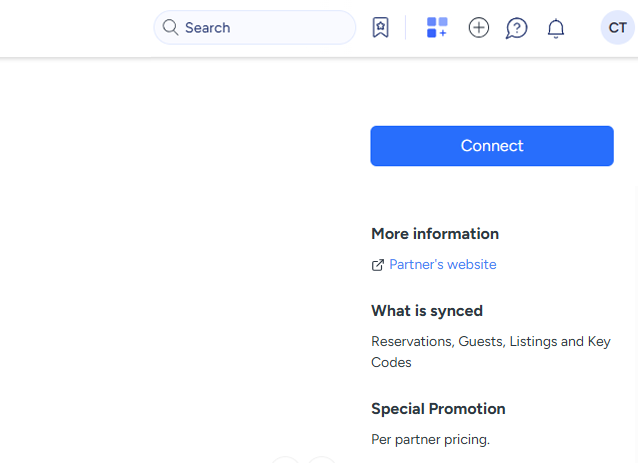
The Guesty platform will then generate your unique API key – a code required for integration between the Guesty and Tedee platforms.
You now have 3 hours to set up the integration in the Tedee Portal. Copy the Guesty API Key to your computer’s clipboard.
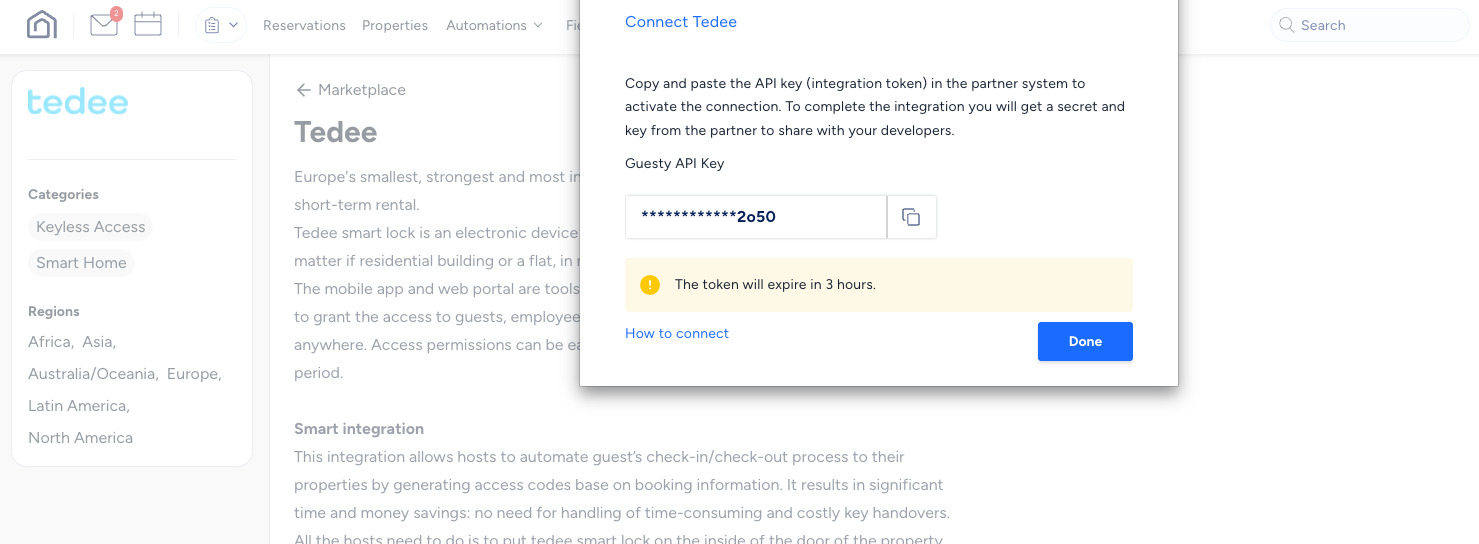
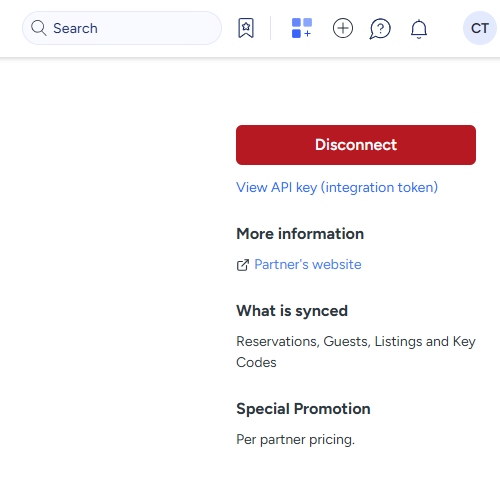
Note: If you need to access the Guesty API Key again during these 3 hours after generating it, click “View API key (integration token)” to view it again.
If you fail to integrate the platforms within 3 hours, click Disconnect, then Connect again to generate a new code, valid for the next 3 hours.
You can also disconnect the platforms at any time and deactivate access management automation.
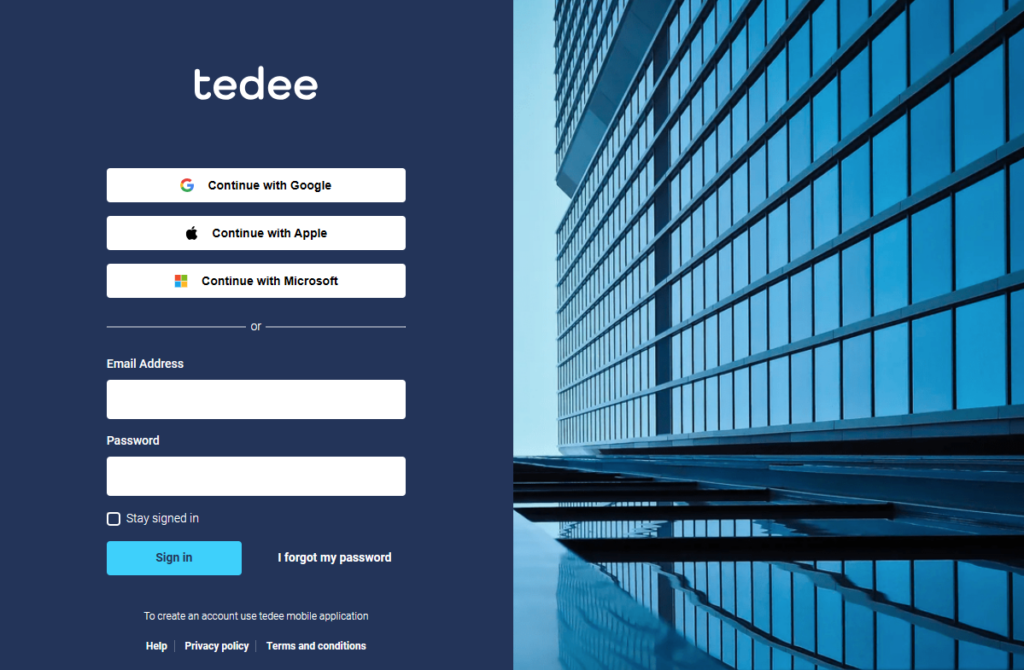
With your Guesty API Key generated, go to the Tedee Portal at https://portal.tedee.com and log in with your Tedee account.
Then, in the left sidebar menu, select the Short-term rentals option and choose Guesty.
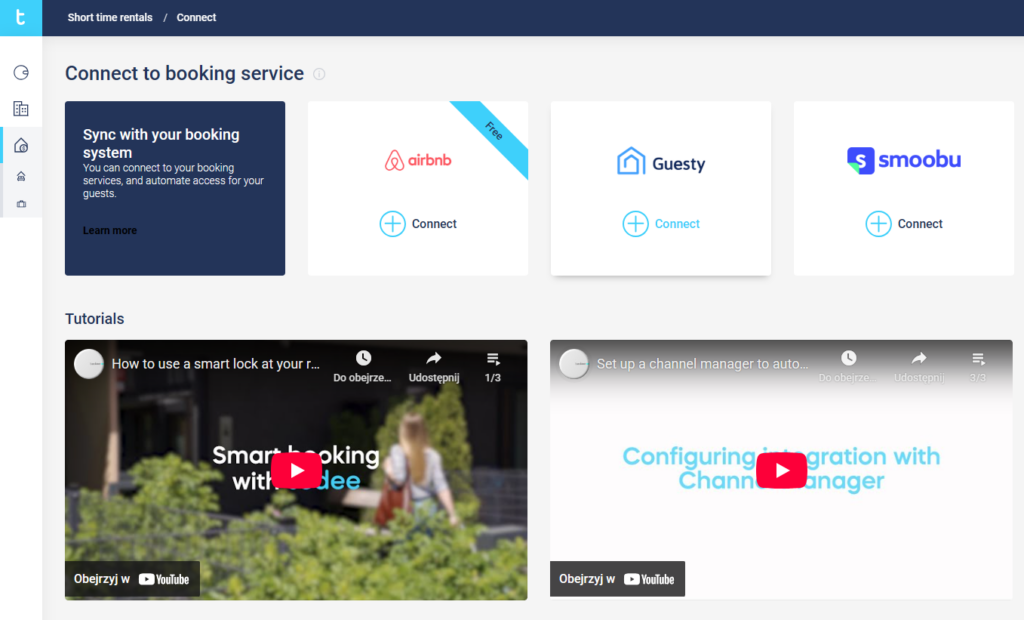
In the sidebar menu, paste the Guesty API Key generated earlier and click Connect.

Guesty and Tedee will now integrate and sync your rental listings.
You will be redirected to the Accommodations view. All accommodations will be automatically synchronized from the short-term rental platform.
Accommodations page
The Accommodations page lists all the user’s synchronized rental apartments across all connected rental services.
The “Accommodations” tab contains properties that have been correctly linked to the Tedee system. This means they are ready to accept new bookings, and the automation is working correctly.

| Name | Action | |
| 1 | Toggle filters bar icon | Shows/hides filters bar |
| 2 | Manual sync button | Allows forcing the synchronization of your accommodation with a connected reservation service provider |
| 3 | Filter by keyword | Shows all accommodation filtered by the selected keyword |
| 4 | Filter by automation | Filter list by automated/not automated accommodations |
| 5 | Filter by platform | Filter list by connected rental platforms |
| 6 | Apartment name column | The apartment name synced from the short-term rental integration. It is recommended that the names of the objects differ – this will make the whole process easier to manage |
| 7 | Lock column | Name of the lock linked with the apartment |
| 8 | Platform column | Logo of the short-term rental platform to which the apartment is linked |
| 9 | Apartment name | Name of the apartment linked with the lock |
| 10 | Context menu | Show context menu for selected accommodation |
| 11 | Edit accommodation | Open sidebar with selected accommodation where users can sync or edit accommodation properties |
| 12 | Show bookings | Redirects user to booking view with selected apartment |
| 13 | Load more option | If there are more records, they should appear after scrolling |
| 14 | Clear all filters | Resets all selected filters state |
No bookings found view
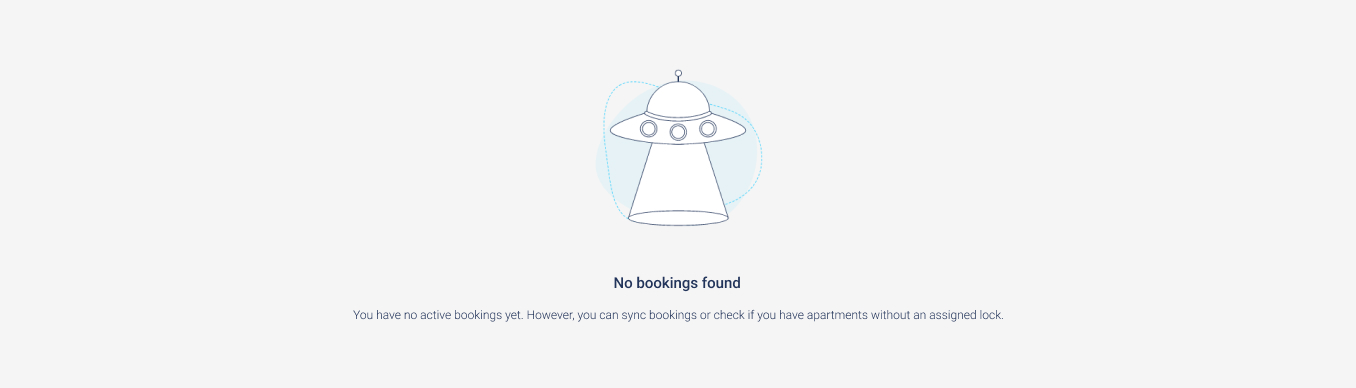
The Accommodations view can filter data by two columns: Apartment name and Platform.
The user can perform filtering in two ways:
- select the “Filter by name” option
- select “Platform” and click on a channel management system from the drop-down list

The main goal of synchronization is to keep the same status in the short-term rental platform and the Tedee Portal.
From the Tedee Portal user’s point of view, the accommodation synchronization process is simple. It refreshes the list of available accommodations from the short-term rental platform into the Tedee Portal. After clicking the “Sync” button, the synchronization process starts. The Tedee system should reflect all updates made to the short-term rental platform. For example, all deleted accommodations should disappear from the list in the Tedee Portal, and newly created ones should appear in their place.
Rental automation settings
After clicking on the row with the facility name, a panel will appear on the right side of the screen. It contains the rental automation settings that the user can modify.
Rental options that the user can change are:
- Linking/unlinking the rental and the smart lock. Linking the smart lock is mandatory for the automation between the channel management system and the Tedee system to work correctly. The user will only see the locks that they own. To link the lock to the accommodation, it must be paired with the bridge and the keypad.
- How many days before the booking starts the guest should receive access data.
- Management of notifications.
Disconnecting the lock from the rental system cancels all reservations and the access granted for these reservations.
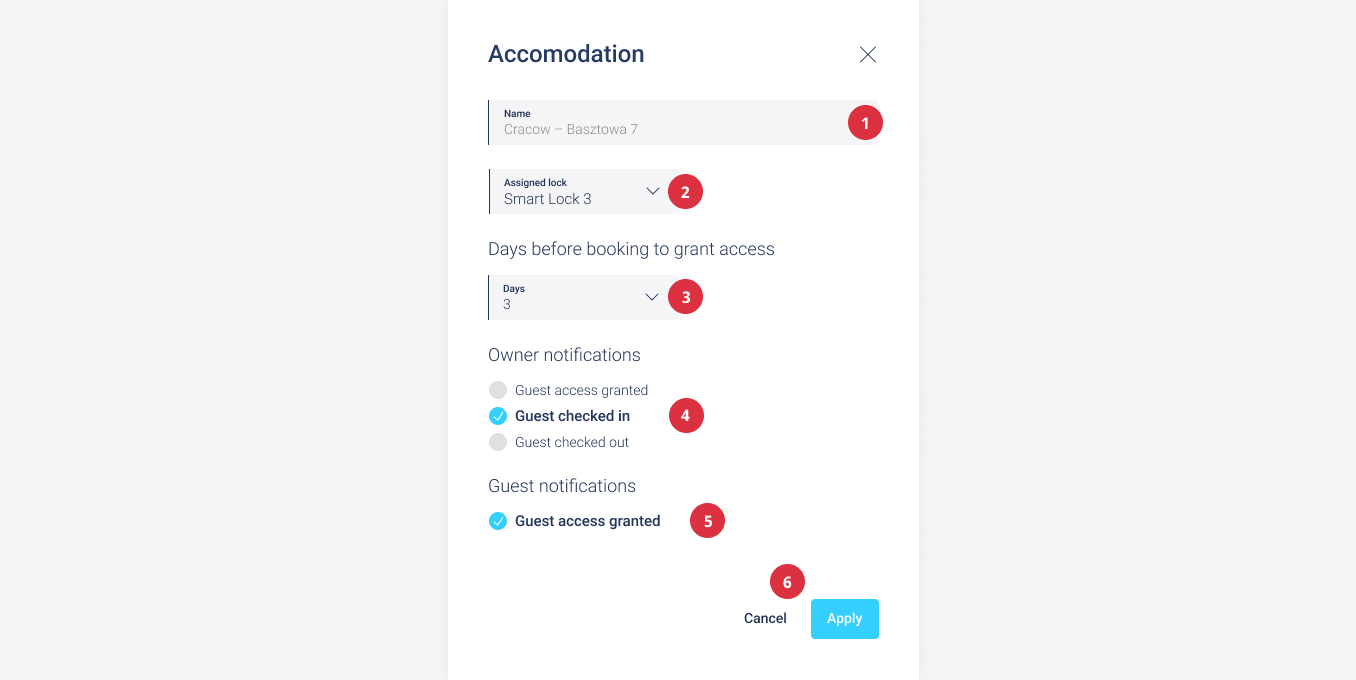
| Name | Action | |
| 1 | Accommodation name | Accommodation name synced from short-rental system (read-only field) |
| 2 | Linked smart lock | The name of the smart lock assigned to the accommodation |
| 3 | Days before booking to grant access section | The number of days before which guests will receive access to the lock from the Tedee system |
| 4 | Owner notifications | Owner notifications options |
| 5 | Guest notifications | Guest notifications options |
| 6 | Apply or Cancel button | The user can accept introduced changes by clicking the Apply button and discard them by clicking the Cancel button |
Bookings page
The Bookings tab displays all bookings made by guests (external users from the short-term rental platform).
The bookings view allows you to check whether the automation is working correctly, the booking status, whether the user has successfully entered the property, and whether the booking has been completed.
Portal users can view PIN access details and update them.
Although the system automatically synchronizes the booking list with the rental platforms, users can force synchronization manually if they notice that the data is out of date.

| Name | Action | |
| 1 | Manual sync button | Allows to force the synchronization of your accommodation with a connected reservation service provider |
| 2 | Toggle filters bar icon | Shows/hides filters bar |
| 3 | Filter by keyword | Shows all bookings ID/e-mail columns by with matching keyword |
| 4 | Accommodation select | Shows all bookings for a selected rental item |
| 5 | Booking ID column | Booking ID from external short-term rental platform |
| 6 | Guest column | E-mail of the guest |
| 7 | Apartment column | Apartment name which booking is created in |
| 8 | Booking starts column | Date of check-in – access to the Tedee system will start from this date |
| 9 | Bookings ends column | Check-out date – after this date, access to the Tedee system will end |
| 10 | Status bar | Display status bar with information about current booking state |
| 11 | Load more options | If there are more records, they should appear after scrolling |
Status bar
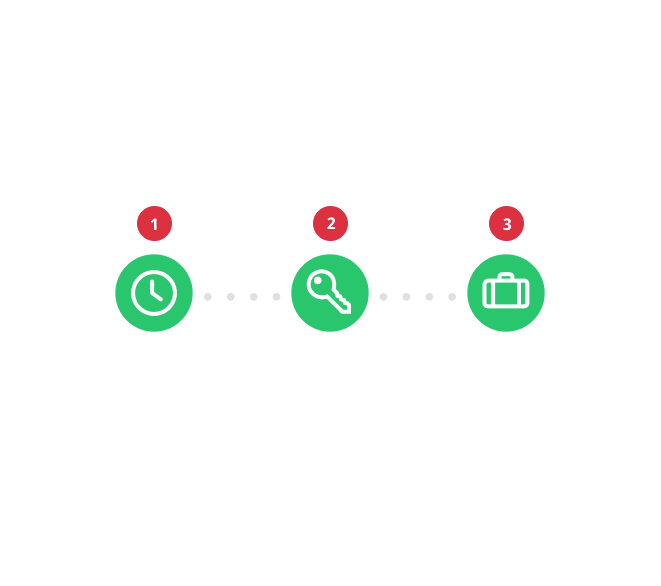
| Name | Action | |
| 1 | Automation schedule step | Displays information about the automation schedule.
Two states are available:
|
| 2 | Access granting step | Displays detailed information about granted access status.
Three states are available:
The granting of access may fail due to three errors:
If an error occurs, the application will automatically schedule the next connection attempt (it will display the date of the next attempt). When the maximum number of retries is reached, the system will stop performing this action and hide information about the next attempt. |
| 3 | Check-in step | Displays information about whether the customer has checked into the room.
Two states are available:
|
Automatic access granting
Automatic access granting starts when a new booking is created on the short-term rental platform. All automation is based on the configuration chosen by the user.
Note that access to the Tedee lock is not created at the same time as the booking is made.
The process of automatic granting of access is as follows:
- The Tedee system receives information about a new booking created in the channel management system.
- The booking information is saved in the Tedee system.
- The owner or administrator of the lock sets the moment when the visitor receives the access data.
- A selected number of days before the reservation starts, the guest receives access information to the Tedee lock—access details are sent automatically by e-mail. Here is a template of a sample message:
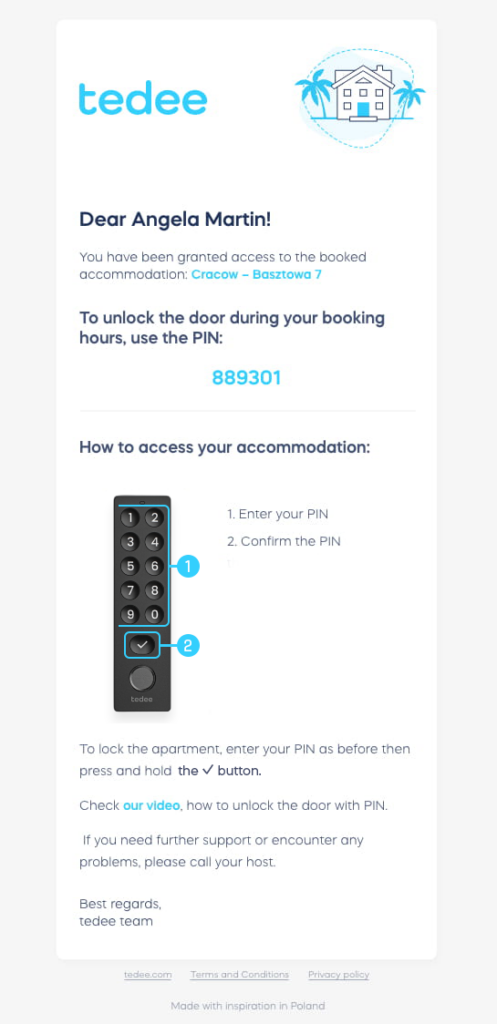
- The lock owner can enable notifications for the first time the guest unlocks the door—so they know the exact check-in date.
- Upon check-out, the guest loses access to the property and cannot use their PIN again.
Editing channel management system API key
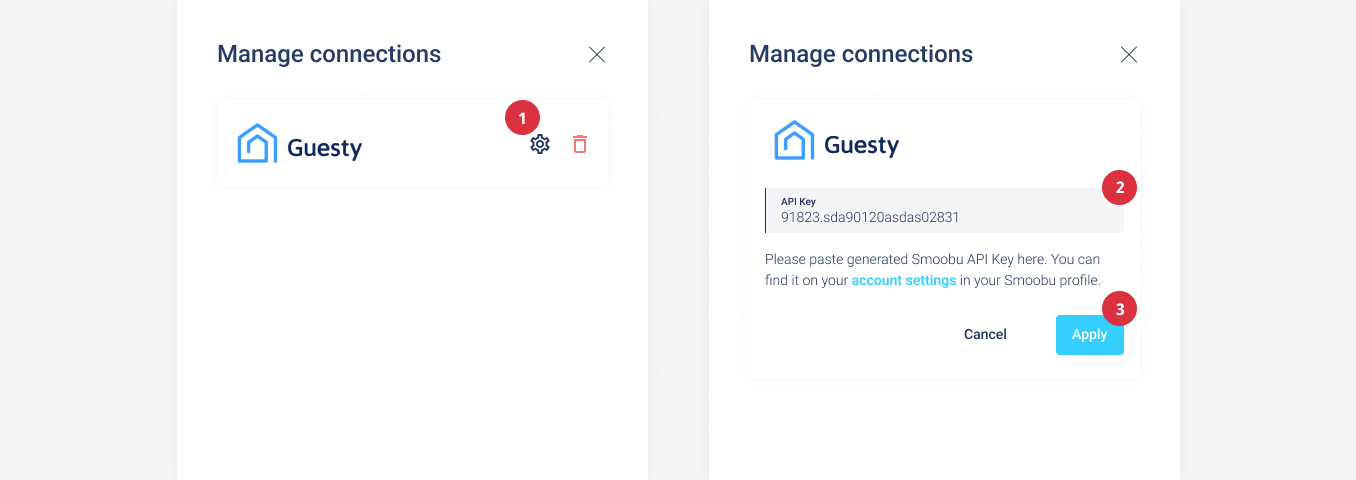
Editing the channel management system API key allows the user to refresh the integration when the previous key has expired or when a service was disconnected due to an unspecified error. This action can be performed from the connection management view—the list of connected rental services should be visible at the top of the sidebar. To open the edit page, click the three-dots icon in the top-right corner (1), and select Manage connections > gear icon. After pasting the key (2), complete the process by clicking Apply (3).

Unlinking channel management system from Tedee account
Unlinking accounts will automatically remove all related accommodations linked to the Tedee Portal. To do this, go to Accommodations > Manage connections, click the trash can icon next to the channel management system logo, and confirm deletion.


Access cancellation
Access cancellation occurs each time a booking is removed from the Tedee system.
This happens when:
- The reservation in the short-term rental platform is canceled.
- The reservation in the short-term rental platform is completed.
- The accommodation in the short-term renal is deleted.
- Tedee lock is unlinked from the accommodation.
The process of automatic canceling of access is as follows:
- One of the above situations occurs.
- The booking information is deleted from the Tedee system.
- If access to a Tedee lock is only scheduled and pending, it is canceled.
- If access to the Tedee lock has already been granted, it is revoked.