Mobile widgets: iOS
Tedee iOS widgets let you control a Tedee smart lock or BleBox Smart Relay Module straight from your iPhone screen — without opening the Tedee app first.
This article explains what the widgets are, what you need to use them, the four widget types available, and how to add and set them up.
For the general iPhone steps that aren’t specific to Tedee — adding, moving, or removing any widget — see Apple’s own support pages. This article focuses only on what’s specific to Tedee.
How do Tedee iOS widgets work?
Tedee widgets for iOS are small control panels you place directly on your Home Screen or in Today View (the panel you reach by swiping right from the first Home Screen page, or from the Lock Screen). Your smartphone must be unlocked for them to work.
- Tedee iOS widgets are not available as Lock Screen widgets or Control Center buttons.
- When integrated with other smart-home platforms (using Matter or Apple Home, where compatible, or cloud-based integrations via the Tedee Bridge), Tedee devices can be controlled through other widget types specific to that platform.
You don’t have to launch the Tedee app, and it doesn’t need to run in the background. A widget is simply a button sitting on your screen: tap it, and the pre-set action runs immediately.
- One widget typically controls one device, whose name is written on the widget. If you regularly use multiple Tedee smart locks, you can add several Tedee widgets to your screens, or use the Nearby access widget (more on that later in this article).
- The Tedee app must be installed on the device and signed in to a Tedee account with active access permissions.
- The widgets do not work when the app is logged out of the Tedee account, or when the account lacks the required access permissions for a device — for example, if it has temporary permissions only and is outside the permitted time window, or if it is not allowed to unlock remotely but uses a remote-unlock widget.
- If the app is uninstalled from the device, the widgets are removed automatically.
A Tedee Bridge paired with your devices and an active internet connection on your smartphone are not strictly required for Tedee widgets to work. They are needed only for remote unlocking (over the cloud). Local unlocking is handled via Bluetooth.
- For offline operation over Bluetooth, your smartphone needs a valid security certificate. This certificate stays valid as long as you have signed in to your Tedee account in the app within the last 7 days.
⚠️ Even though each widget requires your smartphone to be unlocked to work (confirmed via Face ID, Touch ID or passcode), be aware that the widgets’ ease of use can make it easier to unlock your door accidentally when you’re not at home.
Only set up remote-unlock widgets if you are aware of this risk, and place them where they are unlikely to be tapped accidentally on an unlocked phone.
Tedee widgets
To add a Tedee widget, touch and hold an empty area of your Home Screen or Today View until the icons jiggle, tap Edit (or +), search for Tedee, pick the widget you want, and tap Add Widget.
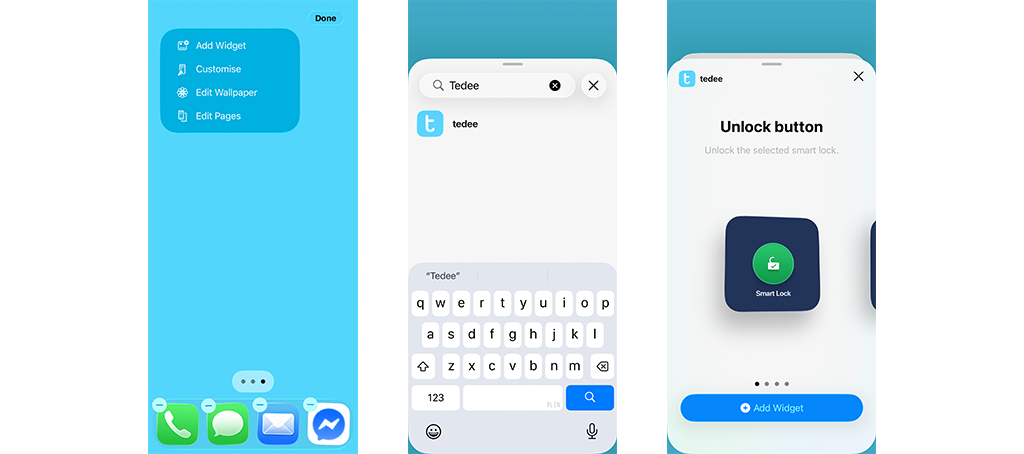
Widget settings open automatically after you add each widget, and you can return to them at any time by touching and holding a widget and choosing Edit Widget — or by touching and holding an empty area of your Home Screen or Today View until the icons jiggle, then tapping the widget.
Learn more about the available widget types and their settings below.
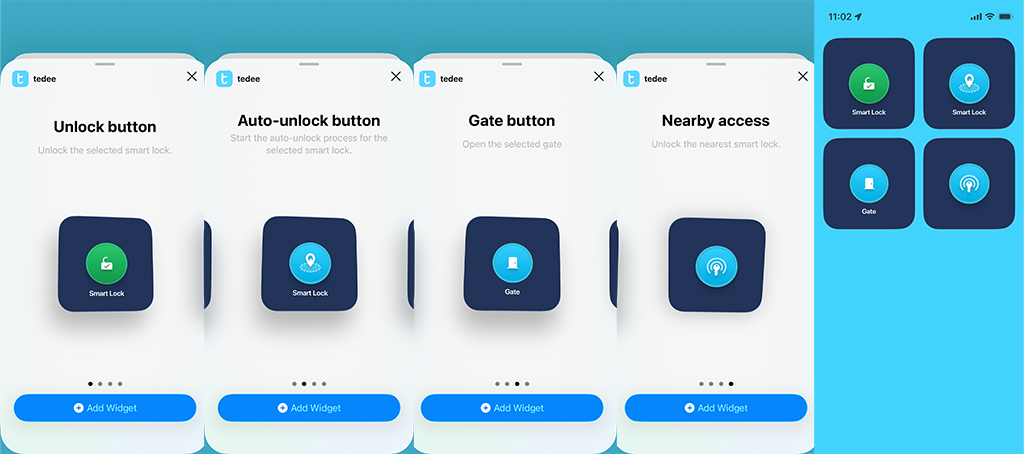
Unlock button
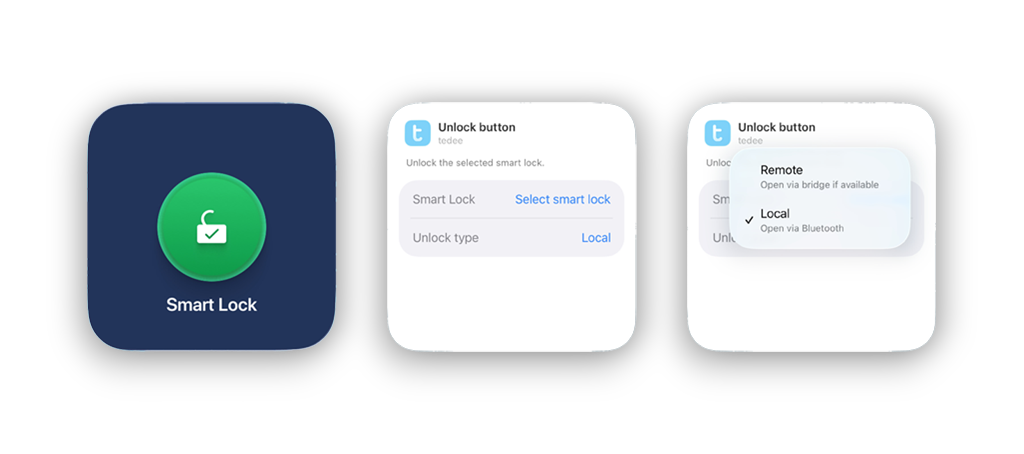
Immediately unlocks one specific smart lock that you choose when setting up the widget.
You also choose an unlock type:
Local — opens the lock over Bluetooth. You need to be within the lock’s Bluetooth range.
Remote — opens the lock over the cloud via a Tedee Bridge, so it works from anywhere with an internet connection.
⚠️ A remote-unlock widget triggers as soon as you tap it on an unlocked phone, so be mindful of the risk of unlocking your lock accidentally when you’re away from your property.
When the pull spring feature is enabled, the Unlock action depends on the door’s current state: unlocking the lock from a locked state unlocks the door and pulls the spring, opening it completely; if the door is already unlocked but closed, the Unlock action pulls the spring only.
Auto-unlock button
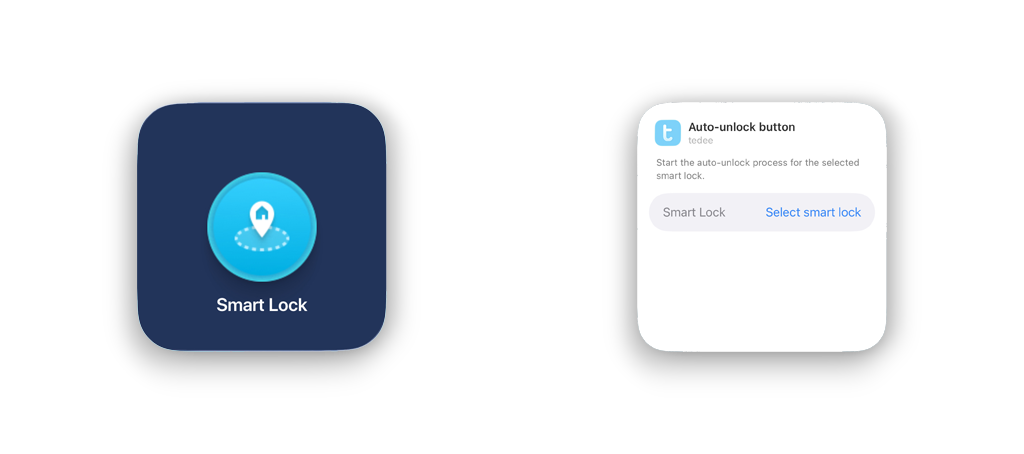
Also called the “Coming Home button”, it launches your smartphone’s Bluetooth detection of the smart lock. When your phone detects the lock nearby, the door unlocks automatically.
This widget is useful when you want to use automatic unlocking but haven’t traveled far enough for it to trigger on its own. Automatic unlocking normally starts only after you leave the OUT zone and return to the IN zone around your home. If you don’t go far enough from your property — for example, walking the dog or running to a store around the corner — you may never leave the OUT zone, so auto-unlock won’t trigger on its own. Tapping this widget starts the detection manually instead.
The widget works only for smart locks that have the automatic unlocking feature enabled and configured.
Gate button
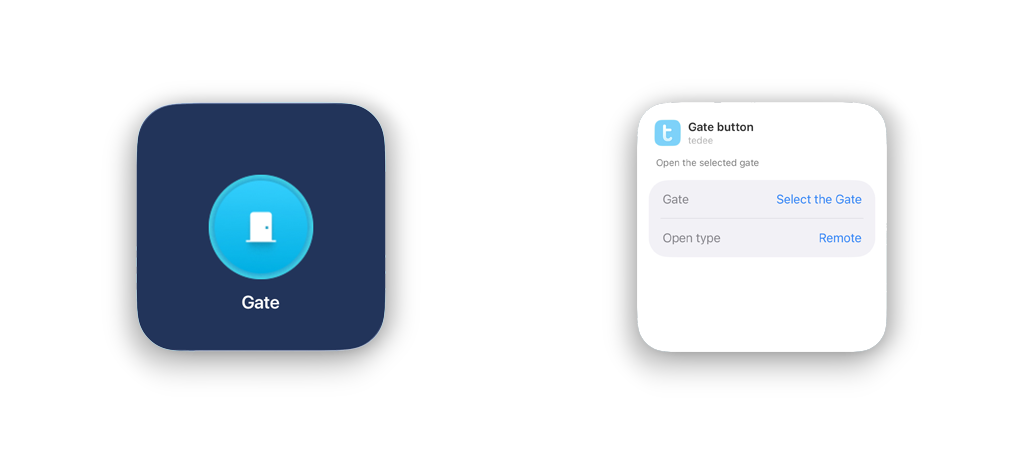
Opens a gate, garage door, parking barrier, fence gate, shared entrance or similar — anything driven by a BleBox Smart Relay Module connected to a compatible mechanism and integrated with the Tedee account.
The Gate button always works over the cloud, so both your smartphone and the BleBox module need an internet connection (the BleBox module connects over Wi-Fi only).
However, the widget can be restricted to work either remotely or locally.
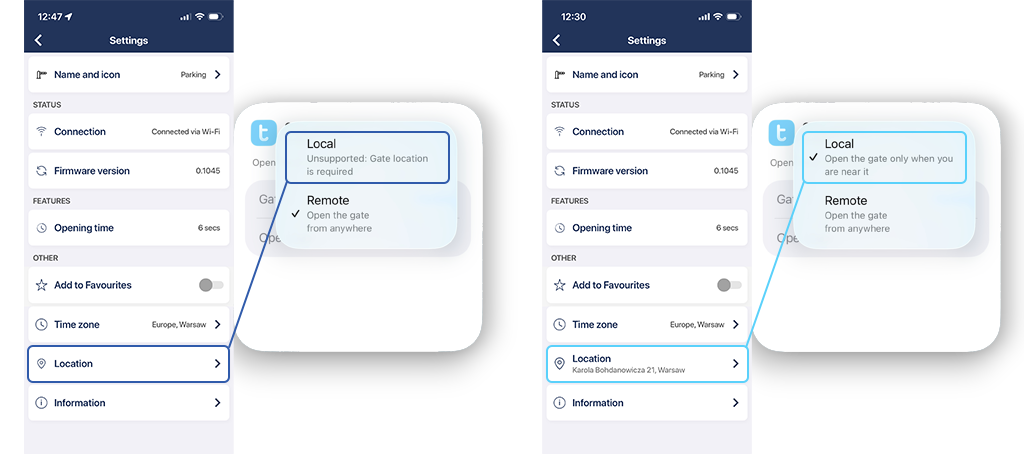
The Local open type requires the BleBox Smart Relay Module’s location to be set in advance in the device’s settings. After that, the widget works only when you are near the device, verified by your smartphone’s location data. If the device’s location is not configured, local unlocking from the widget is unavailable.
The Remote open type works no matter where your smartphone is, triggering the connected relay mechanism immediately.
⚠️ A remote-open widget triggers as soon as you tap it on an unlocked phone, so be mindful of the risk of opening the relay mechanism accidentally when you’re away from your property.
Nearby access

Unlocks the closest smart lock over Bluetooth. If more than one of your paired locks is within range, it opens the one with the strongest Bluetooth signal.
This makes it a kind of universal unlock button: with several locks — say home and office — a single Nearby access widget unlocks whichever one you’re standing next to. Like Local unlocking, it works over Bluetooth only, with no Tedee Bridge or cloud involved.
When the pull spring feature is enabled, the Unlock action depends on the door’s current state: unlocking the lock from a locked state unlocks the door and pulls the spring, opening it completely; if the door is already unlocked but closed, the Unlock action pulls the spring only.